User Setup Guide
Welcome to the User Setup Guide for R1 Discover. This guide walks you through setting up your new account — from your first login through taking your first R1 Discover activity.
Getting Started
Before you begin your R1 Discover journey, get your account squared away:
- Getting Started with My Account: What to expect when your account is created and where to find your login credentials.
- My First Login: Logging in for the first time, accepting the Terms & Conditions, and changing your temporary password.
- R1 Discover Profile Overview: A tour of the profile layout and how to navigate the platform.
- Take a moment to complete your profile — and don't forget to add your photo.
- Bookmark R1 Discover on Your Devices: Add R1 Discover to your phone, tablet, and computer so it's always one tap away.
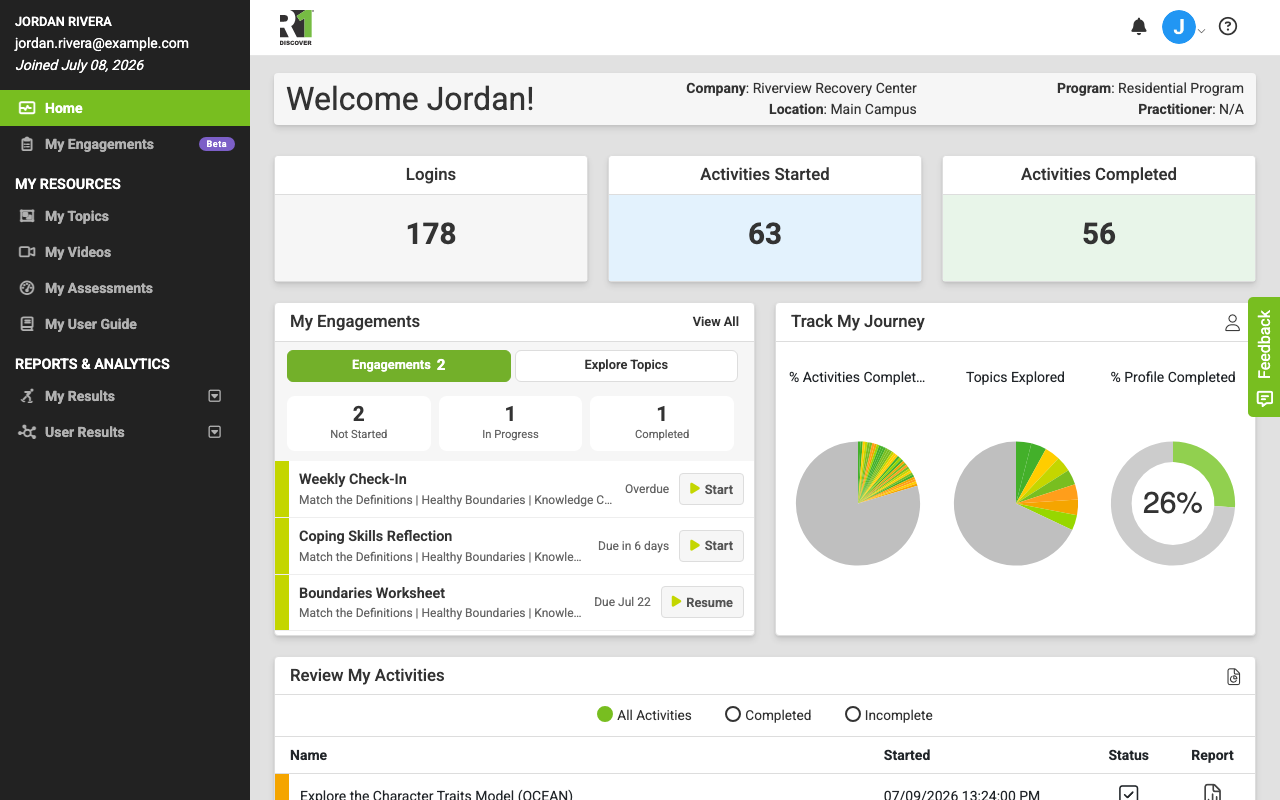
Navigating Your R1 Discover Journey
Starting Your First Activity
Begin your journey by taking your first activity. You can start from either of two places:
- Home Dashboard — Start an Activity widget: Search and start an activity right from the home dashboard.
- My Topics page: Browse the full resource library — every topic, activity, video, and worksheet available to you — and start an activity from there.
Each topic currently offers two types of activities:
- Explore Activities: An interactive overview of an R1 topic model. Explore activities build a high-level understanding of the model and encourage you to reflect on your own experiences as they relate to it.
- Identify Activities: A deeper journey of self-discovery using interactive card-sorting exercises. Identify activities help you see where you are inside a topic model and give you vocabulary to better express yourself.
Resuming an Activity
Your progress is saved as you go, so you can pick up right where you left off:
- Home Dashboard — Review My Activities widget: Filter your recent activities to those you haven't completed, then resume.
- My Results — My Activity Log: Your full activity history. Search your incomplete activities and resume any of them.
Reviewing a Completed Activity
Every activity is saved to your profile, so you can revisit your history and completed activity reports at any time:
- Home Dashboard — Review My Activities widget: Filter to completed activities and open the report.
- My Results — My Activity Log: Search all of your completed activities and open any final report.
Tracking Your Progress and Results
R1 Discover brings your activity data to life in interactive dashboards under My Results in the left navigation:
- My Results — My Dashboard: A visual summary of your results across multiple topics, without opening individual reports. Fully customizable.
- My Results — My Trend: Compare your completions of one specific activity — up to 10 at a time — to see how your results change over time.
Was this helpful?
Thanks for the feedback!