Knowledge Checks
Knowledge checks are short, self-scoring exercises that measure how well you understand an R1 topic model. Instead of asking multiple-choice questions, a knowledge check gives you a set of cards and asks you to place each one into the correct category of the topic model. When you finish, you get an instant score, a performance level, and a breakdown of what you got right — and you can retake it as often as you like to reinforce what you've learned.
Knowledge checks live inside a topic, in their own My Knowledge Check group alongside the topic's activities and resources. See My First Activity for the two ways to find and start any activity.

Knowledge check formats and levels
A topic can offer a few knowledge checks that build on each other, usually at three difficulty levels — Basic, Intermediate, and Advanced. They come in two formats:
- Match the Definitions – you're given definition cards and drag each one onto the model category it describes.
- Practice Categorizing and Master Categorizing – you're given real-world statement or behavior cards and drag each one onto the model category it belongs to.
Both formats work the same way: read the card, decide which category it fits, and drop it there.
Starting a knowledge check
Open a knowledge check the same way you open any activity. Its intro page shows the topic cards and video, a Start Activity button, the learning objectives, and an estimated time (knowledge checks are quick — typically 5–10 minutes).

Select Start Activity to begin. If you belong to more than one program, choose the program first.
Taking a knowledge check
The screen shows the topic model's categories as color-coded buckets across the top, with one card at a time waiting below. The heading tells you what to do — for example, Drag Sorting Card to the Correct Category or Drag Definition Card to Correct Model Category.

To answer:
- Read the card at the bottom of the screen.
- Decide which model category it belongs to.
- Drag the card onto that category's bucket and drop it. On a touch screen, tap the card and then tap the category.
Helpful controls while you work:
- Card counter – tracks how many cards you've placed out of the total, so you always know how far along you are.
- View a category – select the eye icon on a category to open its definition if you need a reminder of what it covers.
- Text to speech – when enabled for the activity, select the speaker icon on a card to have it read aloud.
Keep placing cards until every card is sorted. When you've placed the last one, select Finalize to score your answers and open your report.
Your score and report
As soon as you finish, your My Knowledge Check Report opens with your results.
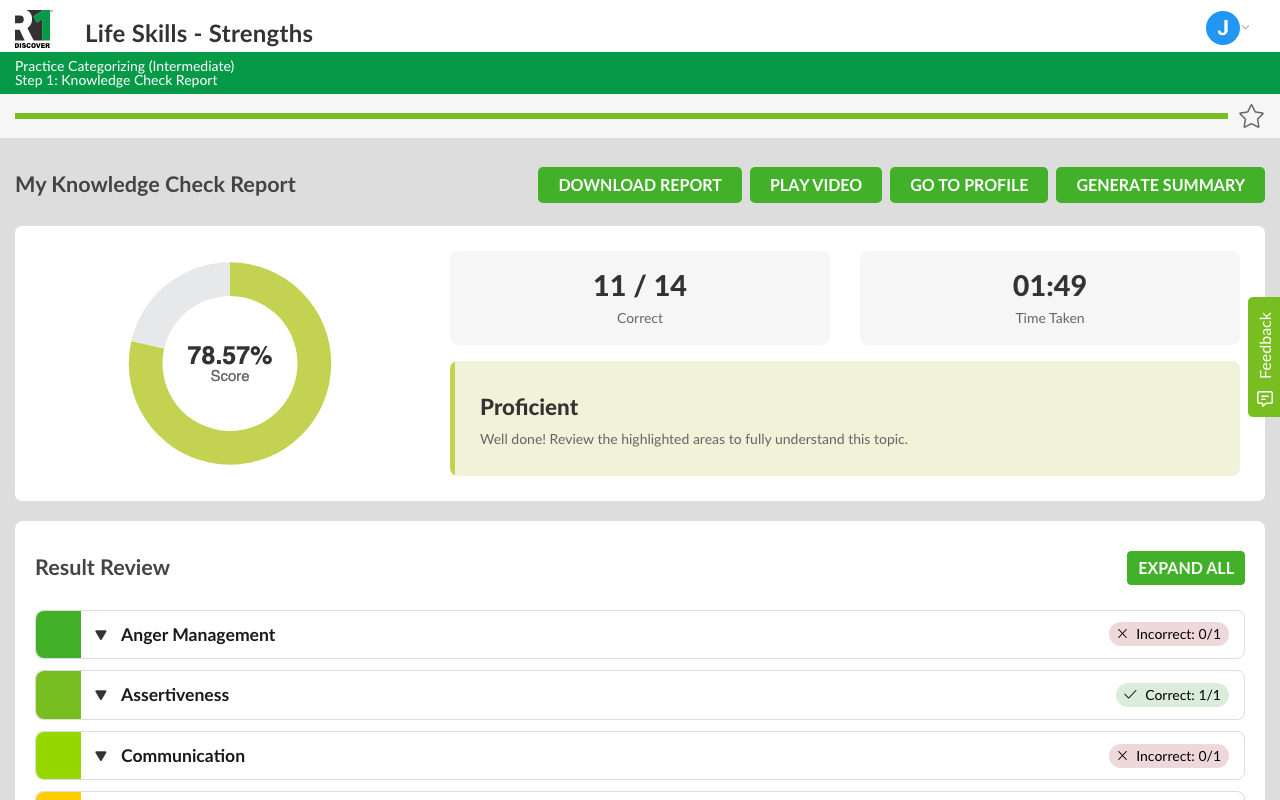
At the top of the report:
- Score – the number of cards you placed correctly out of the total, shown as a ratio (for example, 11 / 14 Correct) and as a percentage in a doughnut chart.
- Time taken – how long the knowledge check took you.
- Performance level – an overall rating based on your percentage correct: Expert (90% and above), Proficient (70–89%), Developing (50–69%), or Needs Review (below 50%). A short message beside the level (for example, "Well done! Review the highlighted areas to fully understand this topic.") tells you what to do next.
Below your score, the Result Review lists every model category and marks it Correct, Partially Correct, or Incorrect. Select Expand All, or open a single category, to compare your answer with the correct one and re-read the definition, so you can see exactly where you were right and where to focus next. A model review of the whole topic follows, so you can revisit each category's meaning.
You can also Download Report for a PDF copy, Generate Summary for a short written recap, or Play Video to rewatch the topic video from the report.
Once you complete a knowledge check, it earns a completion checkmark in the topic's activity list, just like any other activity.
Retaking a knowledge check
Knowledge checks are meant to be repeated. From your report you can:
- Retake Knowledge Check – start a fresh attempt to improve your score. Cards may appear in a different order or mix each time.
- Explore Topic Resources – jump back to the topic to review its activities, videos, and worksheets.
- View Topic Library – return to My Topics to pick another topic.
Retaking a knowledge check is a great way to close the gaps highlighted in your Result Review and move up a performance level. When you're done, select Go to Profile to return to your Home Dashboard.
Share your feedback
Depending on your organization's setup, a short check-in survey may appear while you review your report. Your input helps R1 and your organization improve the learning experience.
Was this helpful?
Thanks for the feedback!