My Assessments
My Assessments is where you find, take, and review the assessments available to you in R1 Discover. Each assessment is a short questionnaire; when it is finished, most produce a results report highlighting your strengths and the areas with the most room to grow.
Opening My Assessments
In the left navigation, select My Assessments.
This menu item appears only if your role has permission to view assessments. If you do not see it, ask your facilitator or administrator to enable assessment access for your role.
Finding an assessment
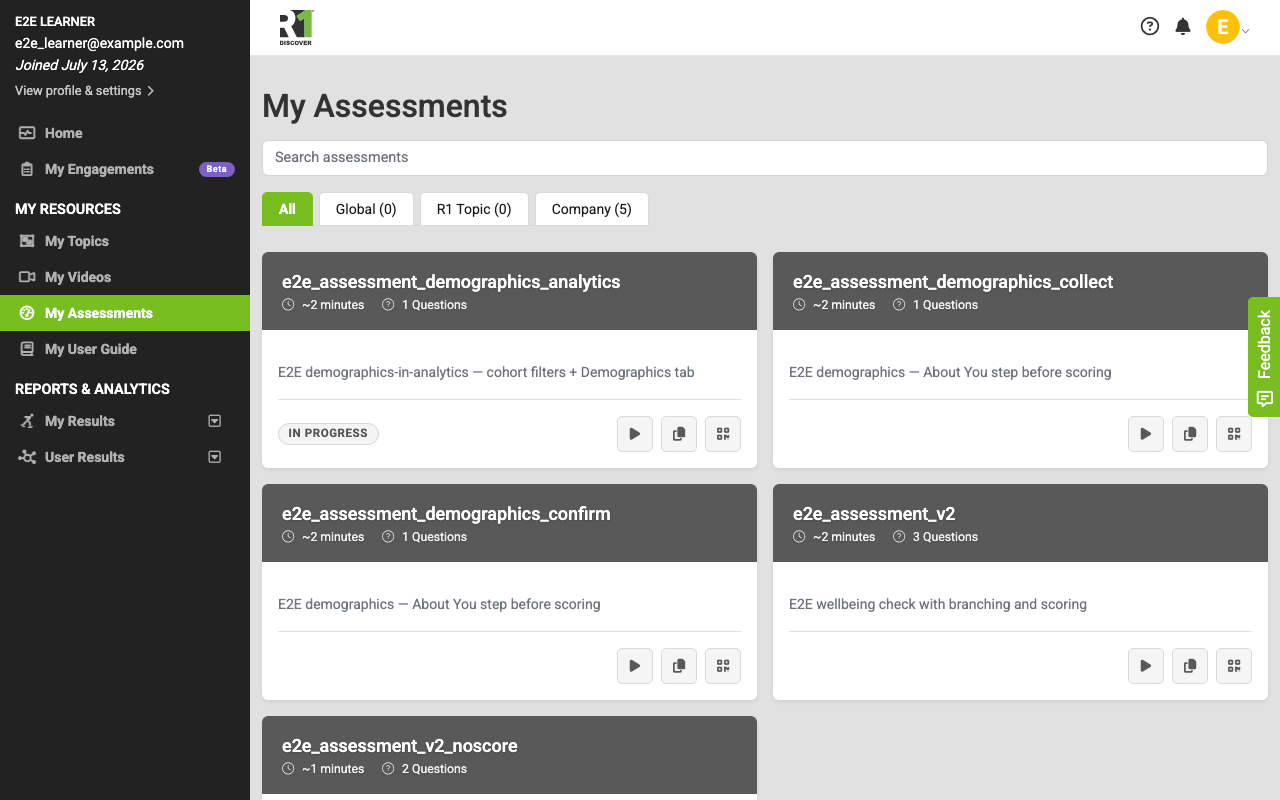
The My Assessments page shows the assessments you can start on your own as a grid of cards. Each card has a colored header and shows:
- The assessment title.
- The estimated time, shown as approximate minutes.
- The number of questions.
- A short description in the body of the card.
If you have already started an assessment, its card shows an In progress label so you can pick it back up.
To narrow the list:
- Search — type in the search box (labeled Search assessments) to match by title.
- Category tabs — select a tab above the grid to show only one category: All, Global, R1 Topic, or Company. Each tab except All shows a count of how many assessments it contains.
If no self-guided assessments are available to you, the page shows the message "No self-guided assessments are available right now."
Starting an assessment
Assessments reach you in one of two ways:
- Self-guided — start an assessment directly from its card. On the right of each card are small round buttons: the play button starts it (or resumes it if it is in progress), the copy button copies a share link, and the QR button shows a printable QR code for the same link.
- Assigned — a facilitator assigns an assessment to you, and you open it from your engagement or from a link or QR code they share.
When you start an assessment, you first see an overview screen with the assessment description and quick stats — the number of questions, the estimated minutes, and, when they apply, how many dimensions it measures and any time limit.
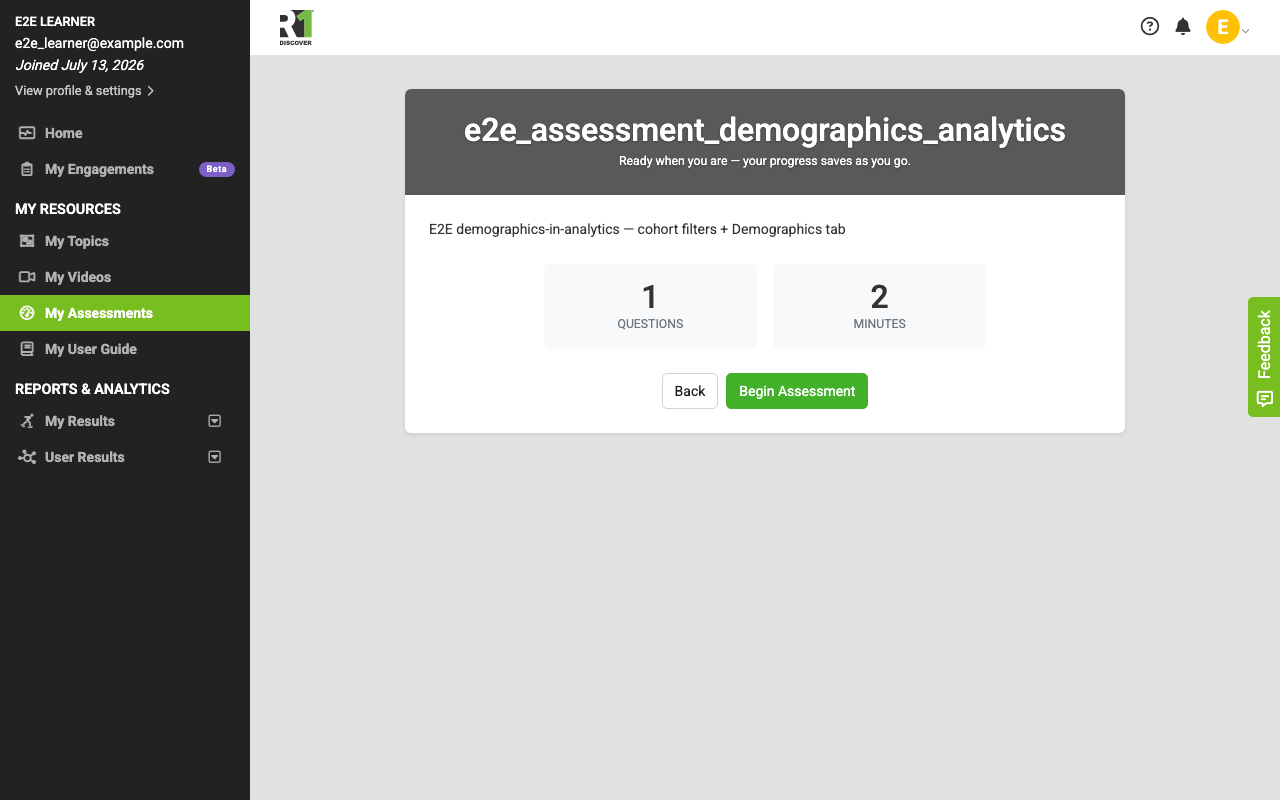
Review the overview, then select Begin Assessment. If you already have progress, the button reads Resume Assessment instead. Select Back to return to your list without starting.
A note about research (some assessments)
A few assessments — the standardized, R1-wide ones — ask one extra question before anything else: whether your answers may be used to help improve programs like this. You see a short card headed "Can we use your answers for research?" that explains, in plain language, that:
- Your answers may be used in research to understand how programs help people.
- Only your care team ever sees your name — researchers only ever see de-identified data, never your name, birth date, or address.
- Taking part is completely voluntary. Saying no does not affect your care, your results, or your ability to take the assessment.
- You can change your mind at any time, though once results are combined and published as group findings those can't be pulled back out.
Two equal buttons — Yes, I consent and No thanks — let you choose. Neither one is picked for you, and either choice takes you straight into the assessment. Only R1-wide assessments ask this; your organization's own assessments never do.
You are asked only once per assessment. On a repeat attempt you don't see the full card again — instead the About You step shows a single line reminding you of your last choice (for example, "You have agreed to share your data for research.") with a Change link if you want to switch. Changing your answer there updates it for that attempt and going forward.
Confirming your details first
Some assessments ask you to confirm a few background details before the questions begin (for example, employment or housing status). If R1 Discover already has this information on file, you see an About You step that lists what is on file and asks "Is this still right?" Review each item and:
- Select Yes, this is still accurate to continue, or
- Select Edit next to an item to update it first.
This step only appears for assessments that use it, and only the details that assessment needs are shown. Depending on the assessment, these can include things like your age and your ZIP or postal code:
- Some assessments ask "How old are you?" as an exact age rather than an age range — type your age in whole years. As with every About You field, you can decline; choosing "Prefer not to say" never blocks the assessment. If R1 Discover can work out your age from your date of birth, it shows the age for you and you don't need to type it.
- The location field is labeled "ZIP / Postal code" and accepts both US ZIP codes and UK-style postcodes, so it works wherever you are.
Answering the questions
Each question fills the screen one at a time inside a colored card that matches the assessment.
At the top of the card:
- A progress bar and a "Question X of Y" counter track how far along you are.
- Longer assessments are split into sections. When you are inside a named section, the card shows "Section X of Y" with the section name and a second, overall progress bar beneath it.
Assessments use a few different question types, and how you answer depends on the type:
- Choice questions (including yes/no, agree-or-disagree scales, and rating scales) show tappable answer cards. Select the one that fits. For many of these, your selection advances automatically to the next question — a note reading "Your selection will automatically advance to the next question" tells you when this happens.
- Written-answer questions give you a text box. Type your response — a counter shows how many characters you have used out of the limit — then select Next to continue.
- Number questions give you a single field to type a value into.

Moving through the assessment:
- Select Next → to move forward when a question does not advance on its own. Questions that advance automatically have no Next button — choosing an answer moves you on.
- Select ← Previous to go back and review or change an earlier answer.
- Your answers save as you go, so you never lose your place.
- Depending on your earlier answers, an assessment may add or skip a follow-up question — the total in the counter updates to match.
If you need to stop before finishing, select Save & Exit at the bottom of the card. Your progress is saved and the assessment shows as In progress on your list and in your assessment log, so you can resume it later from where you left off.
Finishing and submitting
On the last question, the button reads Finish instead of Next. Select it to submit and score your responses.
You then see a short "Assessment Complete!" confirmation while your personalized results are calculated. When they are ready, select View My Results to open your report.
Reading your results
When an attempt is complete, its results report opens, and you can return to it any time from your assessment log. Depending on how the assessment is set up, you may see:
- A title card headed Your Assessment Results, with the assessment name, a short description, the completion date, and the attempt number.
- Overall Score — a score ring showing your total as a share of the maximum, with a band pill (for example, Low) naming where your score falls and a caption showing the percentage.
- Personalized Insight — a short interpretation of your results, plus highlights such as a next step, how your score is trending across attempts, or your strongest area and the area with the most room to grow.
- A dimension breakdown when the assessment measures more than one area.
- Summary tiles for your Score, Attempt number, Time Taken, and Completed date.
- Your Answers — a review of what you selected, when the assessment is set to show it.

Some assessments do not display a score. In that case you see a short confirmation that your responses were recorded and shared with your care team, followed by your answers if the assessment shows them.
To save or print your results, select Export to PDF at the top of the report. This opens your browser's print dialog, where you can save a PDF copy. The PDF includes the whole report, with every section expanded: your score breakdown by area and sub-area and, when your organization shows them, your answers. Select ← Back to My Assessments to return to your list.
Permissions and roles
Access to assessments is controlled per role, so what you can do depends on the permissions your organization has granted:
- Seeing the My Assessments menu item and taking assessments requires the My Assessments List permission — without it, the menu item is hidden.
- Viewing your completed results requires the View Own Results permission.
- Whether you see a score on your report, and whether your answers are shown back to you, are set by your organization and can differ from one assessment to the next.
- Building, editing, publishing, assigning, and reporting on assessments are facilitator and administrator tasks and are not part of the learner experience.
If you expect to see an assessment or an action that is missing, contact your facilitator or administrator to confirm your role's permissions.
Was this helpful?
Thanks for the feedback!