My Topics
The My Topics page is the resource library of R1 Discover. Every topic available to you — along with its activities, videos, worksheets, and other supporting content — is accessible from this one page.
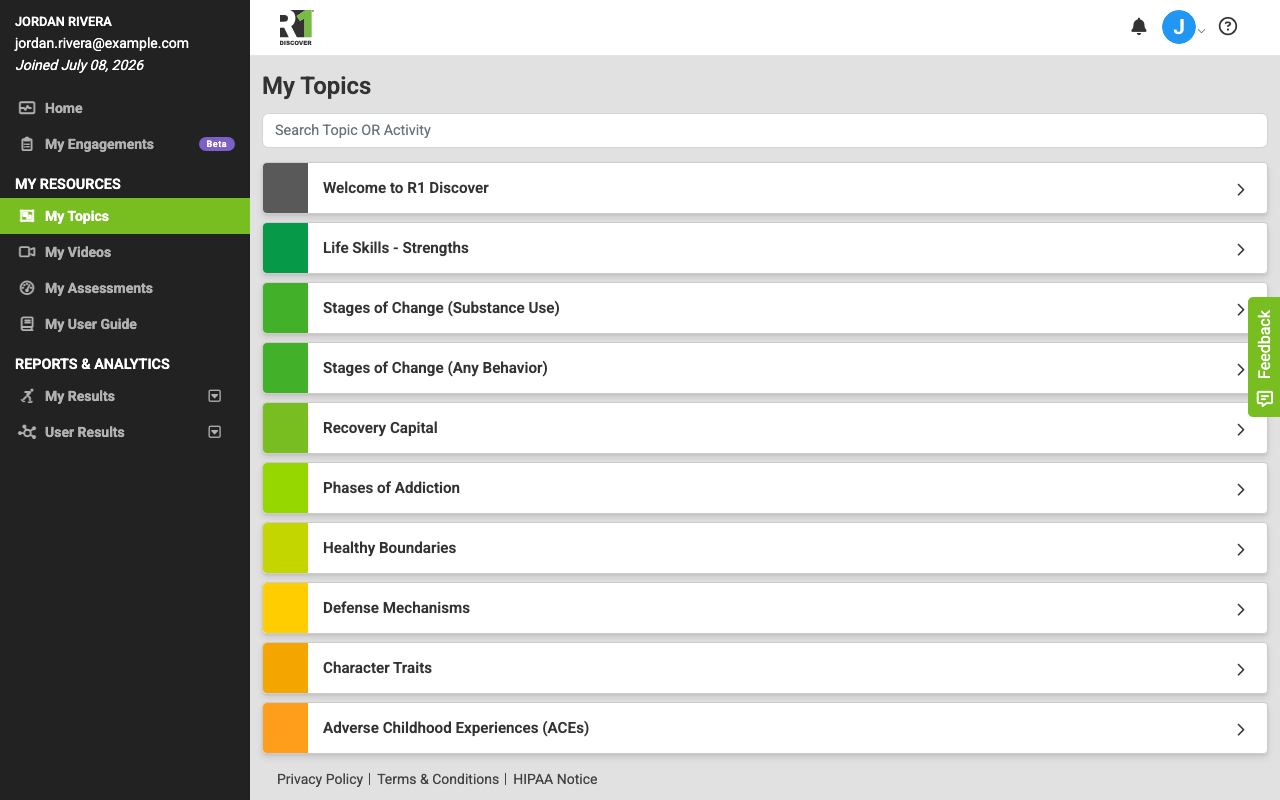
Opening My Topics
- Sign in to R1 Discover.
- In the left navigation, click My Topics.
If you don't see the My Topics link, your role doesn't have access to this page — contact your administrator.
Browsing the topic list
Each topic appears as a color-coded row. Click a topic's name to expand it and reveal its resource dropdowns and activity list; click again to collapse it.
Topics that are not part of your program appear grayed out. You can see their activities, but you can't start them.
Searching topics and activities
Type in the Search Topic OR Activity box at the top of the page. The list filters as you type, matching both topic names and activity names. Clear the search to see all topics again.
Topic resources
When a topic is expanded, a row of dropdowns appears above its activity list. Only dropdowns with available content are shown, so not every topic has every option:
- Resources — supporting documents for the topic, such as model posters. If your organization has facilitator guides enabled, this dropdown is labeled Facilitator Resources and includes the topic's Facilitator Guide.
- Videos — topic videos that open in a pop-up player, useful for understanding the topic before starting an activity.
- Worksheets — downloadable worksheets for summarizing activity results.
- Blog Links — articles that go deeper into the research behind the topic.
- Store Links — links to the R1 Learning store where you can purchase card decks, guides, and other materials for the topic.
Depending on your organization's license, some dropdowns may appear locked with a "License required" message.
Topic activities
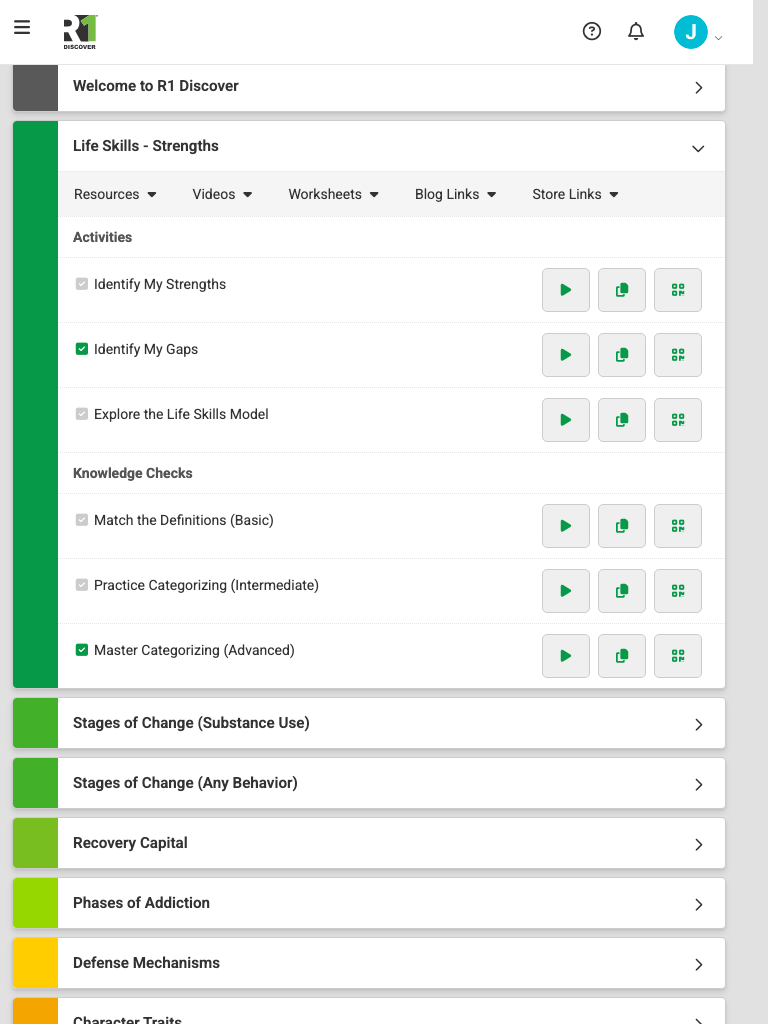
Each expanded topic lists its activities, grouped into sections such as Activities and Knowledge Checks.
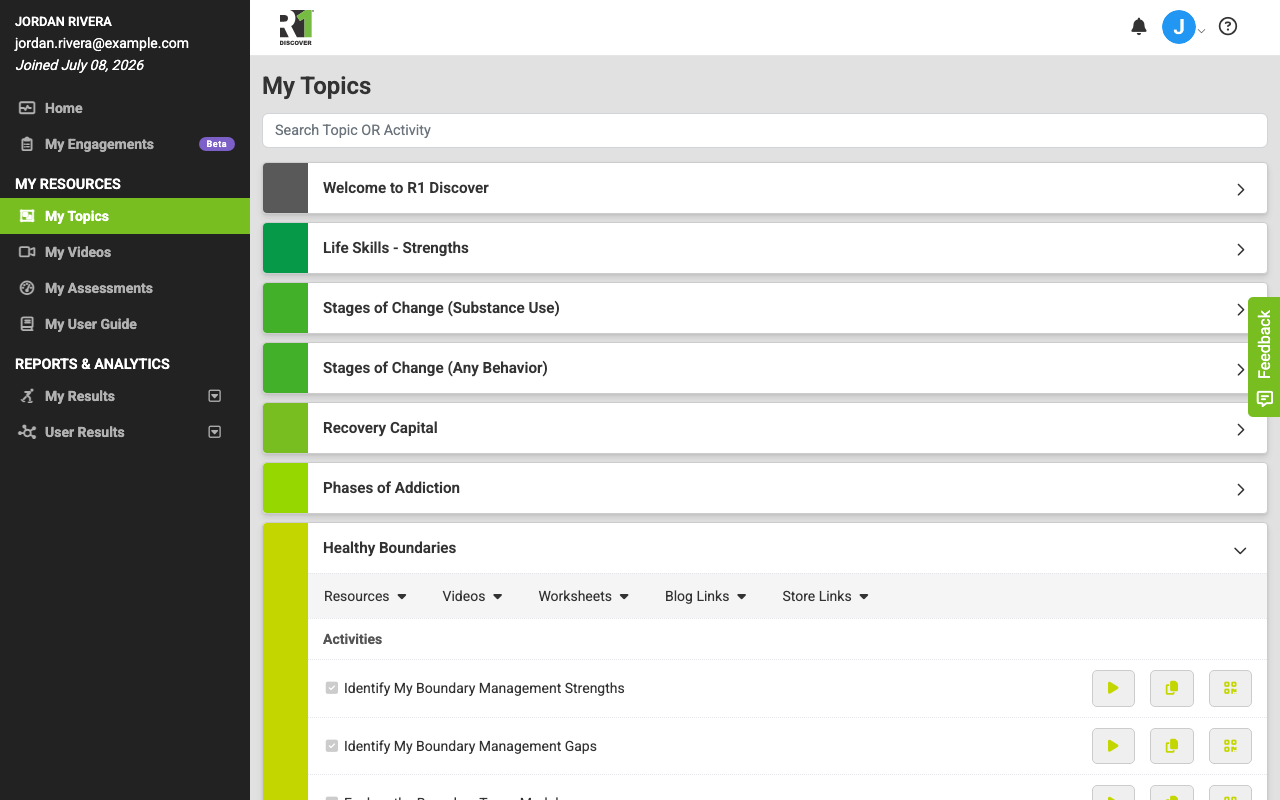
For each activity you'll see:
- Completion checkmark — the checkmark to the left of the activity name is shown in the topic's color once you've completed the activity. Hover over it to see how many times you've completed it and when you last did. A gray checkmark means the activity is not completed yet.
- Activity name — the title of the activity.
- Start Activity — the play button opens the activity start page. See starting your first R1 Discover activity. If you belong to more than one program, select the program from the dropdown first.
- Copy URL — copies a link to the activity start page so you can share it by email, text, or video call.
- QR Code — opens a QR code that others can scan to reach the activity start page (an R1 Discover account is required).
Depending on your role and license, some of these buttons may be hidden or locked.
On a tablet each activity stays on one line, with its name on the left (wrapping onto a second line when it is long) and its buttons on the right. If the activity has a program dropdown, it sits on the line underneath. On a phone the buttons sit under the activity name.
Was this helpful?
Thanks for the feedback!