My Security
The My Security tab on your My Profile page is where you change your password and manage two-factor authentication (2FA) for your account.
Accessing My Security
- Click your profile icon in the top-right corner of R1 Discover.
- Select My Security from the dropdown menu.
You can also open My Profile from the same menu and click the My Security tab on the left.
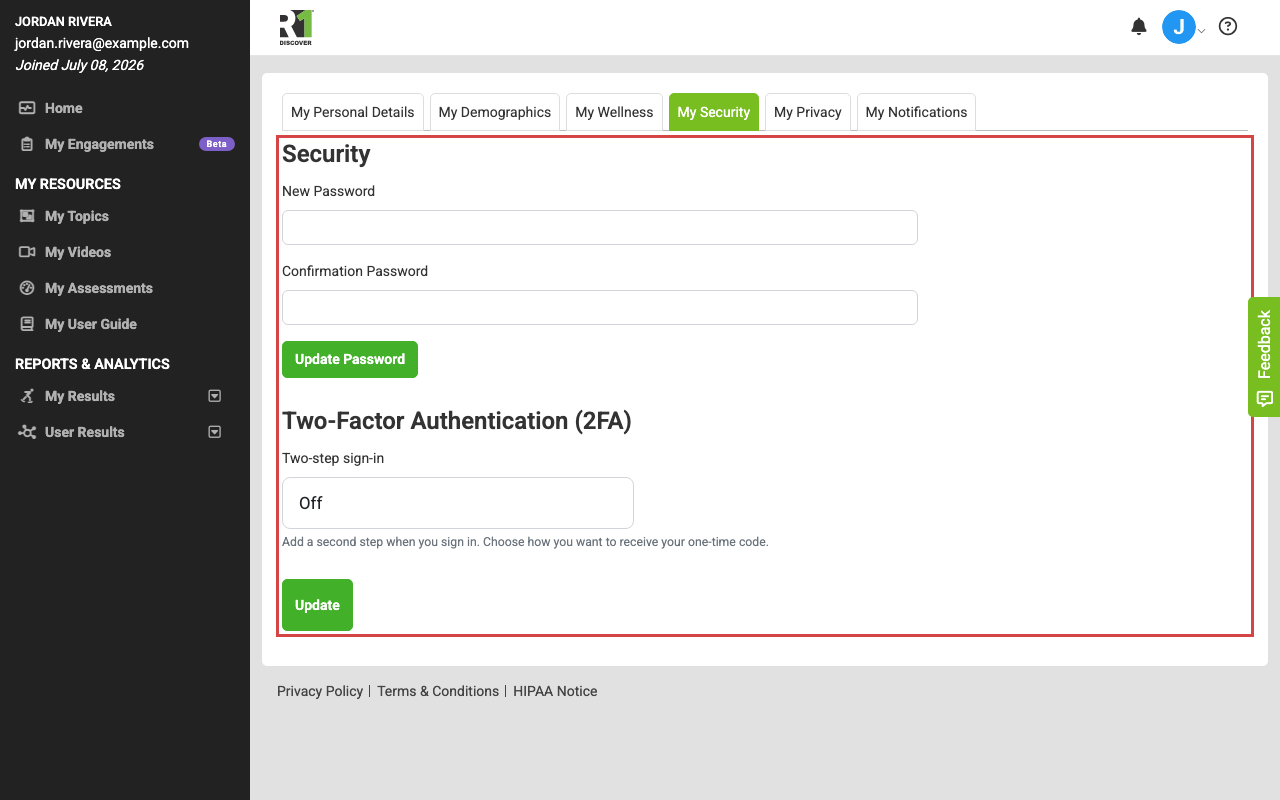
If you don't see the My Security tab, your organization manages sign-in for you (for example, through single sign-on). Contact your administrator with any password questions.
Changing Your Password
- New Password — enter your new password.
- Confirmation Password — re-enter the same password.
- Click Update Password.
Your password must meet all of these criteria:
- At least 8 characters
- At least 1 uppercase letter
- At least 1 lowercase letter
- At least 1 number
- At least 1 special character
Two-Factor Authentication (2FA)
If your organization has enabled 2FA, a Two-Factor Authentication (2FA) section appears below the password form. Two-factor authentication adds a second step when you sign in: after entering your password, you enter a one-time code sent to you.
Use the Two-step sign-in dropdown to choose how you receive your code:
- Off — no second step at sign-in.
- Email code — a one-time code is emailed to you. You must have an email address on the My Personal Details tab to use this option.
- Text-message code — a one-time code is sent to your mobile phone. This requires a verified phone number (see below).
After choosing an option, click Update to save it.
Learners in organizations that use restricted communications (for example, correctional facilities, where learners sign in from facility tablets) don't see this section: no code can be emailed or texted to them, so two-step sign-in isn't available there. Staff accounts aren't affected.
Setting up text-message codes
Choosing Text-message code opens a phone verification form:
- Enter your Mobile phone number.
- Check the consent box agreeing to receive text messages.
- Click Send verification code.
- Enter the code you receive in the Verification code field and click Confirm code. Use Resend code if the text doesn't arrive.
- Once your number is verified, click Update to turn on text-message codes.
Signing in with 2FA
On your next sign-in, after entering your password, R1 Discover sends a one-time code by your chosen method (email or text). Enter the code to finish signing in.
Was this helpful?
Thanks for the feedback!