Resetting Your Password
If you've forgotten your R1 Discover password, you can reset it yourself from the login page.
Request a reset link
- Go to the R1 Discover login page.
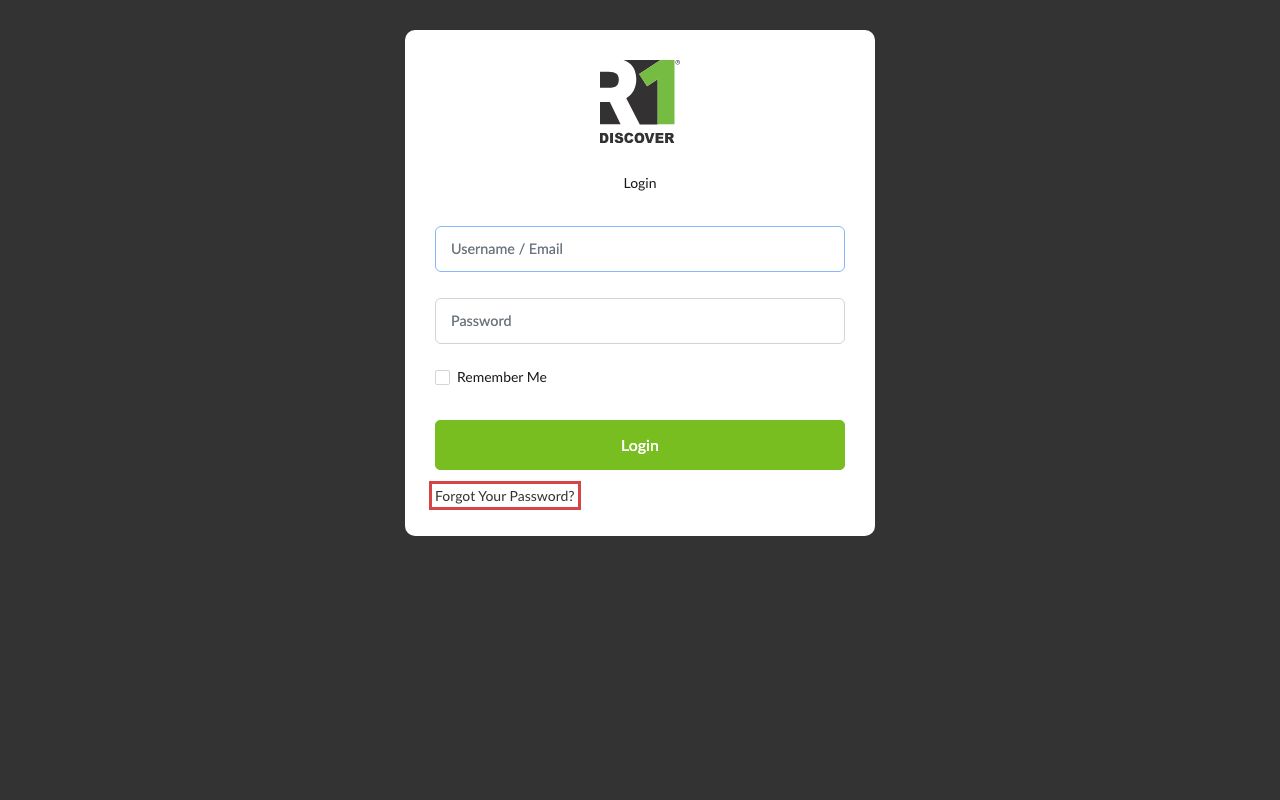
- Click Forgot Your Password? below the form.
- Enter the email address associated with your R1 Discover account.
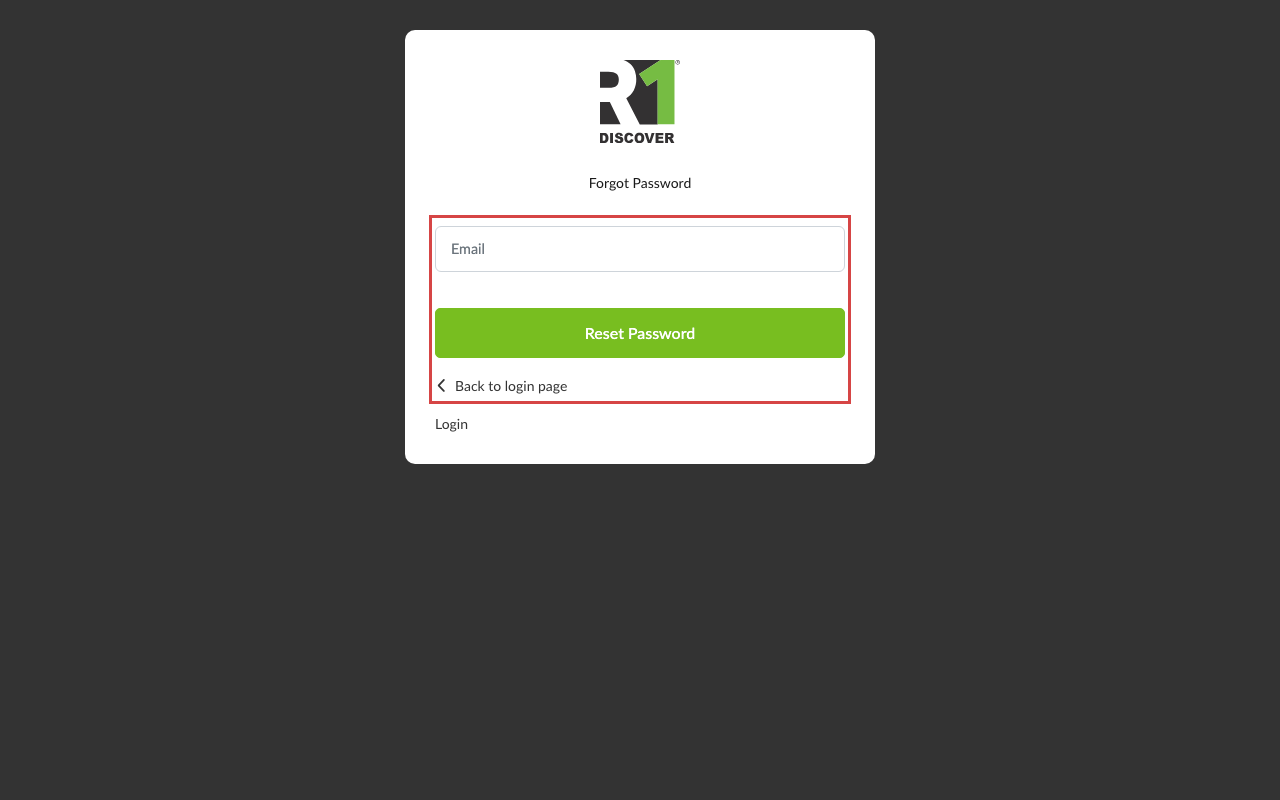
- Click Reset Password.
- Check your inbox for an email with the subject Reset Password. If you don't see it within a few minutes, check your spam or junk folder.
Set your new password
-
Open the reset email and click the reset link. The Reset Password page opens in your browser.
-
Confirm your email address, then enter your new password and re-enter it to confirm.
Your new password must include:
- At least 8 characters
- At least one uppercase letter
- At least one lowercase letter
- At least one number
- At least one special character
-
Click Reset Password.
You'll receive a confirmation email letting you know your password was changed, and you can sign in right away with your new password.
Tips
- In a hurry? You don't have to reset anything to get in. Type your username or email on the login page, click Sign in with a code instead, and choose Email me a code or Text me a code — see Sign In with a Code. Your old password stays as it is, so reset it later when you have time.
- Store your new password in a secure location, such as a password manager.
- If the reset link doesn't work, return to the login page and request a new one — each link is single-use.
- If you never receive the reset email, confirm you entered the email address tied to your account, or contact your program administrator.
Was this helpful?
Thanks for the feedback!