My Video Log
The My Video Log is your personal history of the topic videos you have watched in R1 Discover. Use it to review which videos you have viewed, how much of each one you reached, and how much time you spent watching, and to reopen any video.
Accessing My Video Log
- In the left navigation, select My Results.
- Select the My Video Log tab.
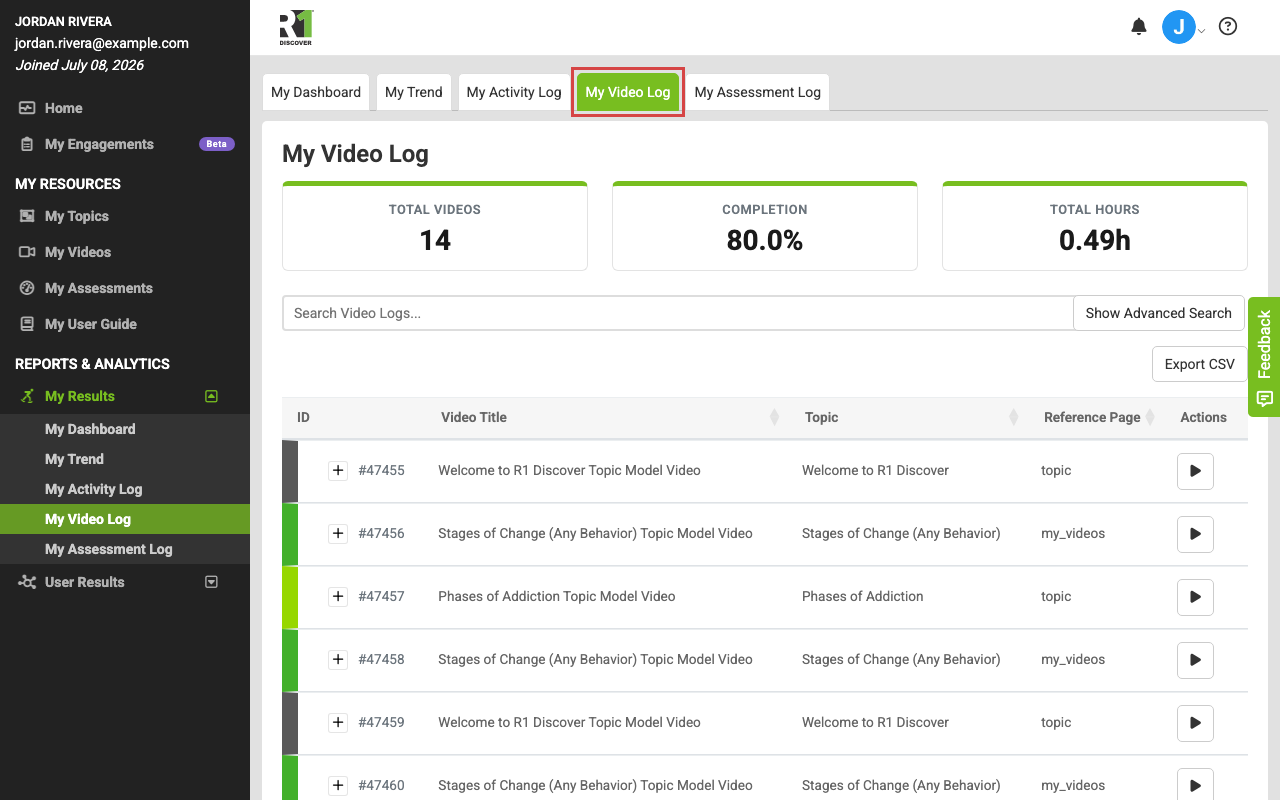
Summary cards
At the top of the log, three cards summarize the videos currently shown (they update as you search and filter):
- Total Videos — how many videos are in your log.
- Completion — your average Watched % across the videos in the log, shown as a percentage.
- Total Hours — the total time you have spent watching, shown in hours.
Reading the log
Videos are listed with the most recently viewed first. Each entry shows:
- ID — a unique identifier for the video view, shown with a colored bar for the video's topic.
- Video Title — the name of the video.
- Topic — the topic the video belongs to.
- Reference Page — the reference page the video is associated with, if any.
- Watch Time — the wall-clock time you spent with the video playing. Replays add to the total, and faster playback speeds lower your Watch Time for the same coverage because you spent less time watching.
- Video Length — the runtime of the video itself.
- Watched % — the percentage of the video you reached at least once. It measures coverage, not time spent, so it does not go down when you replay.
- Date Viewed — when you watched the video.
- Video URL — a link to the video; select it to open the video in a new tab.
- Actions — a play button that opens the video in a new tab.
A Furthest Position column (the latest point in the video you reached) is also available but hidden by default.
On smaller screens, some columns are collapsed — select a row to expand it and see all details.
Searching and filtering
- Type in the Search Video Logs box to search across the log.
- Select Show Advanced Search to filter by individual columns — Video Title, Topic, and Reference Page. Select Hide Advanced Search to collapse the filters again.
- Most columns are sortable — select a column header to reorder the log by that column.
Row actions
The Actions column on the right of each entry shows a play button (play icon). Select it to open that video in a new browser tab. The Video URL column links to the same video.
Exporting your log
If your role allows exporting, an Export CSV button appears above the log. Select it to download your video history, including any search filters you have applied.
Was this helpful?
Thanks for the feedback!