My First Login to R1 Discover
Your first login has three parts: signing in with your temporary password, accepting the Terms & Conditions, and setting a new password. Before you start, have your welcome email handy — it contains your username, email address, and temporary password. If you don't have it, see Getting Started with My Account.
Sign in
Go to the R1 Discover login page. If your organization gave you a company-specific login link, use that instead — it takes you to the same login form.

- In the Username / Email field, enter either your username or your email address from the welcome email.
- In the Password field, enter the temporary password from the welcome email.
- Optionally check Remember me to stay signed in on this device.
- Select Login.
Don't have the temporary password to hand? Select Sign in with a code instead underneath the Login button and R1 Discover will send you a one-time code — see Sign In with a Code.
If the login fails, double-check your username and password against the welcome email. Too many failed attempts will temporarily lock the login button — wait for the countdown to finish, then try again. If you still can't get in, follow Resetting Your Password.
If your account uses two-step sign-in, you'll be asked to enter a verification code before you reach your dashboard. See My Security for details.
If your organization uses single sign-on (SSO), use the SSO button on the login screen instead of a username and password — you won't have a temporary password to change.
On a facility tablet (for example, in a correctional facility), you normally open R1 Discover from the tablet and never see this page. If it appears there, it shows a notice instead of Sign in with a code instead and Forgot Your Password?: reopen R1 Discover from your tablet, and if that keeps happening, contact your onsite programming team.
On a ViaPath tablet
If your facility uses ViaPath tablets, you don't need a username or password. Open R1 Discover from the tablet and you're signed in automatically.
If you sign out, or you're signed out after 30 minutes without activity, you'll see You're signed out:
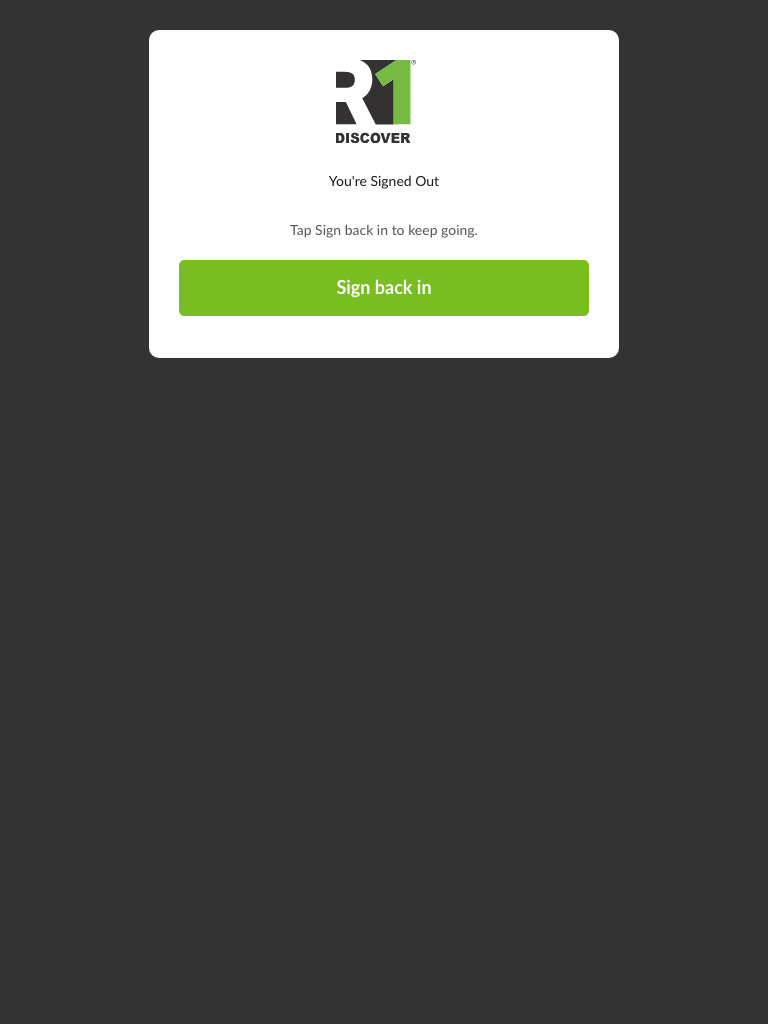
Tap Sign back in to keep going. The tablet signs you in again. There's no username or password to enter on a ViaPath tablet, so this screen has no sign-in form.
If Sign back in doesn't work, close R1 Discover and open it again from the tablet. If it still doesn't work, tell your onsite programming team.
Accept the Terms & Conditions
The first time you sign in, a Terms & Conditions window appears on your dashboard. Read through the terms, then choose:
- Accept — you continue to your dashboard and can start using R1 Discover.
- Do Not Accept — you're signed out immediately. You can't use R1 Discover until you sign in again and accept the terms.
You can review the terms again at any time, and you can withdraw your acceptance later from your profile. See My Privacy for how acceptance and data removal work.
Change your temporary password
After you accept the terms, R1 Discover sends you to the My Security tab of your profile settings and asks you to change your password before going any further.
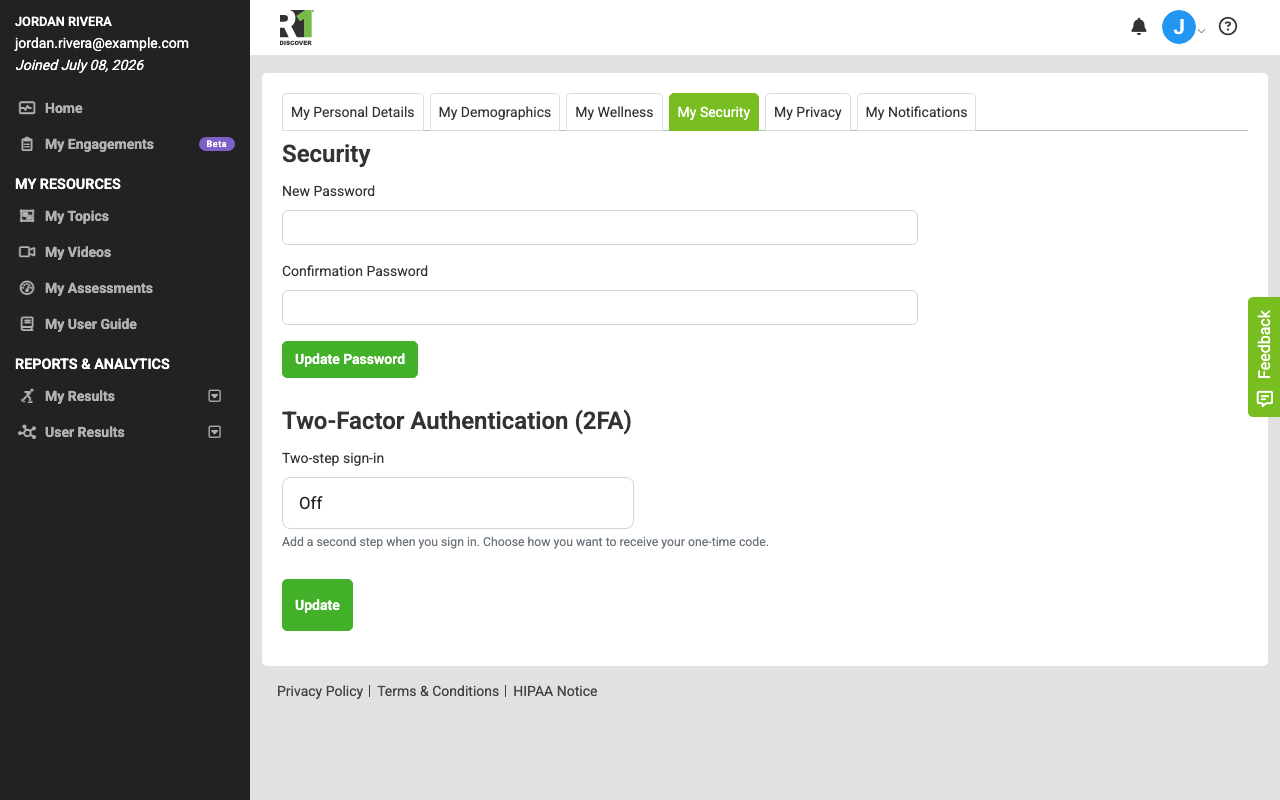
Your new password must include:
- A minimum of 8 characters
- At least one number
- At least one uppercase character
- At least one lowercase character
- At least one special character
To set it:
- Enter your new password in New Password.
- Re-enter it in Confirmation Password.
- Select Update Password.
Once your password is updated, your account is fully set up. To learn more about passwords and two-step sign-in, see My Security.
Was this helpful?
Thanks for the feedback!