R1 Discover Profile Overview
Your profile is the hub for everything you do in R1 Discover. This overview walks through the layout so you know where to find your content, your activities, and your account settings.
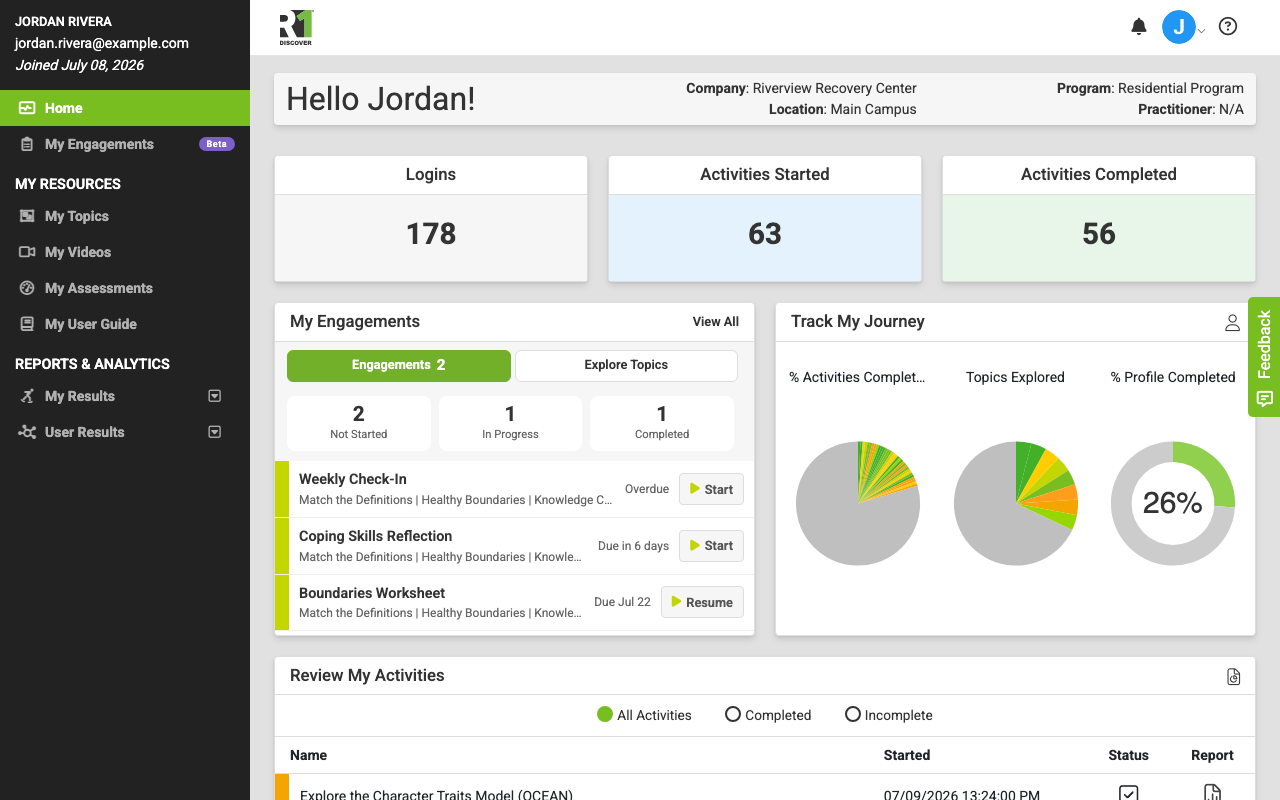
Home dashboard
When you log in, you land on the Home dashboard, which gives you a personal overview at a glance:
- Summary cards — your total Logins, Activities Started, and Activities Completed.
- My Engagements — if engagements are enabled for your organization, your assigned engagements appear here; use Explore Topics to browse the content library and start an activity.
- Track My Journey — visual indicators of your progress through your R1 Discover journey.
- Review My Activities — review and interact with your recent activity history.
If your role includes reporting permissions, the dashboard also gives you a User Summary view that summarizes the activity of the accounts you're permitted to see, including recent user activities, logins over time, most popular topics, and most popular activities.
Left navigation
The navigation menu on the left side of the screen is organized into sections. Which links you see depends on the permissions assigned to your account, so your menu may show only some of these.
Top links
- Home — return to the home dashboard from anywhere.
- Engagements — if engagements are enabled for your organization, open your engagements here.
My Resources
- My Topics — the R1 Discover content library. All topics you have access to live here.
- My Videos — the go-to resource for all topic videos in the app.
- My Assessments — if assessments are enabled for your organization, take and review your assessments here.
- My User Guide — opens this help guide.
Reports & Analytics
- My Results — your own results, with tabs for My Dashboard, My Trend, My Activity Log, and My Video Log.
- User Results — for admins and practitioners: results, trends, and activity history for the accounts you're permitted to see.
- Company Dashboard — for admins and practitioners: an implementation-monitoring view of user activity and engagement across your organization.
Admin Tools
Admins see an additional section for managing the organization:
- Settings — define your organization's locations and programs, map content to programs, and customize how data is displayed to users.
- Accounts — create and manage administrator and user accounts, assign permissions, and map accounts to locations, programs, and practitioners.
- Assessments — if assessments are enabled for your organization: manage settings, build and publish assessments, review flagged responses, and analyze results.
- Account Management — for account owners: oversee license allocation and status for your organization.
Header icons
The top-right corner of the header groups a small set of controls, left to right:
- Activity language — a globe with the current language code (for example EN) beside it. When your organization offers more than one language, use it to choose the language your activities and activity reports run in — it applies to your activities and reports, not to site menus or notifications. The code always shows which language you're in. See Activity Language for details. The globe only appears when more than one language is available.
- Help (?) — opens help for the page you're on.
- Notification bell — your notifications, with a count badge when you have unread ones (see My Notifications).
- Profile image — opens your profile menu (below).
On a tablet the globe stays on the bar. On a phone it moves off the bar to save space and appears instead as an Activity language row inside the profile menu, so help, notifications, and your profile image stay in the same place across devices.
Profile menu

Click your profile image icon at the top right of the screen to open a quick-access menu (on a desktop you can also just hover over it):
- Home — return to the home dashboard.
- My Profile — edit your personal information.
- My Security — change your password or enable two-factor authentication.
- My Privacy — manage your privacy settings.
- My User Guide — open this help guide.
- What's New — see the latest features and improvements added to R1 Discover.
- Activity language (phone) — when your organization offers more than one language, tap this row to switch the language your activities and reports run in; each language is listed in its own name (for example English, Español). See Activity Language.
- Sign Out — log out securely.
If your account belongs to more than one organization, the menu also includes an Accounts section where you can switch between them.
Was this helpful?
Thanks for the feedback!