Activity Language
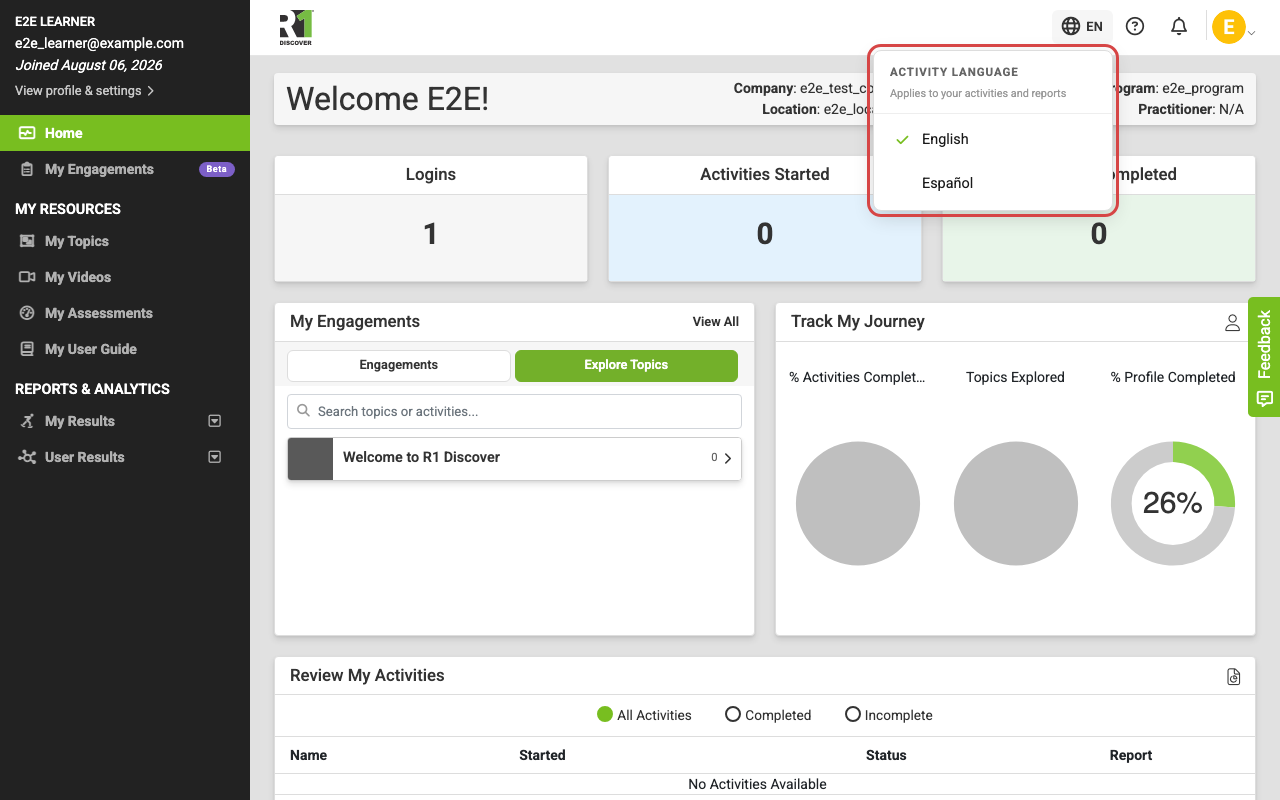
If your organization offers R1 Discover content in more than one language, you can choose the language your activities run in. Look for the globe icon in the top-right area of the header — on every page, including inside an activity. The two-letter code beside it (for example EN) always shows the language you're currently using.
What it changes — and what it doesn't
The chooser is called Activity language because that's exactly its scope. The menu itself says so: Applies to your activities and reports.
Choosing a language changes:
- Activities — the cards, questions, instructions, and model content inside every activity.
- Video captions and audio — captions and narration follow your chosen language when they're available, so you can listen and read in the language you understand best.
- Reports and PDFs — your activity results and downloadable reports render in your chosen language, including reports for activities you finished earlier.
It does not change:
- Site menus and navigation
- Notifications
- Assessments
- Admin pages
Those stay in English regardless of your activity language.
Choosing your language
- Click or tap the globe icon in the header.
- The menu lists every available language in its own name — for example English, Español — with a check mark beside your current choice.
- Select the language you want. Your choice takes effect right away and becomes your default for future activities.
On a tablet the globe stays in the top bar, next to the help, notification and profile icons — tap it the same way.
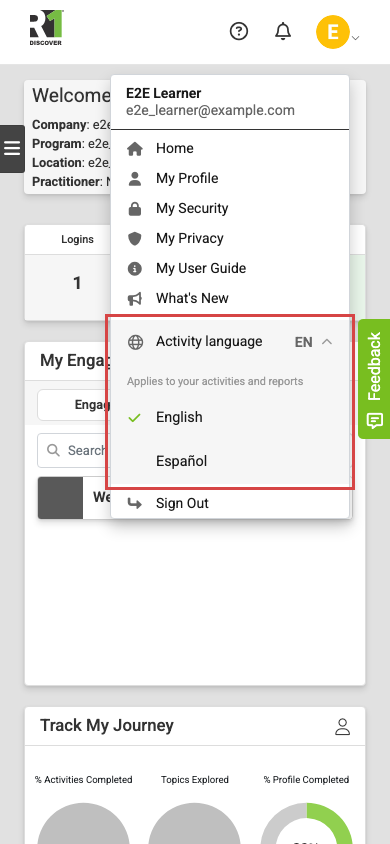
<!-- shots-deferred: tablet-language-globe approved-by:Frank 2026-10-06 reason: local DB offers no translated language so the globe cannot render for capture; capture on dev after deploy -->On a phone, the globe moves off the top bar on most pages to save space. Open your profile menu (tap your profile image) and use the Activity language row instead — tap it to expand the same list of languages. Inside an activity, the globe always stays in the top bar beside the ? (instructions) icon, whatever the screen size.
Switching in the middle of an activity
You can switch languages while an activity is open. The activity changes language in place — you stay exactly where you were, and everything you've done so far is kept. There's no need to finish or restart first.
In the rare case R1 Discover can't tell where you are in an activity, it asks you to confirm before switching, because switching would restart that activity — you can always choose to keep going in your current language instead.
Reading a report in your language
Reports follow the globe like everything else: a report opens in your current language, no matter which language the activity was originally completed in. Change your language with the globe and the report you're looking at re-renders in the new one — there's no separate control on the report page, and the PDF you download matches what you see.
This works both ways — a report completed in Spanish can be read in English (helpful when a counselor and learner don't share a language), and an English report can be read in Spanish.
Two things never change with the language you read in:
- Your own written answers. Anything you typed stays exactly as you wrote it, in the language you wrote it.
- Your results. Scores, card placements, and everything else the report is a record of are fixed at the moment you finished — only the words around them are translated.
When some content isn't translated
Translations are added over time, so a small amount of content may not be available in your language yet. When that happens, that piece simply appears in English — everything else stays in your chosen language.
If you don't see the globe
The Activity language control only appears when your organization's content is available in more than one language. If everything is offered in English only, there's nothing to switch — so the globe stays hidden. It appears automatically once another language becomes available.
Was this helpful?
Thanks for the feedback!