My Assessment Log
The My Assessment Log is your personal history of every assessment you have been assigned, started, or completed in R1 Discover. Use it to start assigned assessments, resume ones in progress, and open reports for the ones you have finished.
Accessing My Assessment Log
- In the left navigation, select My Results.
- Select the My Assessment Log tab.

The My Assessment Log tab appears only if assessments are enabled for your organization.
Summary cards
At the top of the log, three cards summarize your assessments:
- Completed — how many of your assessments are completed, out of the total.
- Overdue — the number of assigned assessments that are past their due date.
- Last Activity — the date of your most recent assessment activity.
Reading the log
Assessments are listed with the most recent first. Each entry shows:
- ID — a unique identifier for the assessment attempt, shown with a colored bar for the assessment.
- Assessment — the name of the assessment.
- Source — how the assessment was started, such as Self-explored (you started it yourself) or one assigned to you.
- Score — your score, when the assessment produces one. Assessments that report results by category or band instead of a single number show a dash (
—). - Status — the current state of the assessment:
- Assigned — the assessment is assigned to you but you have not started it.
- In Progress — you have started the assessment but not finished it. A progress bar shows how far you have gotten.
- Completed — you have finished the assessment.
- Time Taken — how long the assessment took, shown in minutes and seconds (for example,
5m 20s).
On smaller screens, some columns are collapsed — select a row to expand it and see all details.
Searching and filtering
- Type in the Search Assessment Logs... box to search across the log.
- Use the All Assessments dropdown to show only a specific assessment.
- Use the All Statuses dropdown to show only assessments with a particular status (Assigned, In Progress, or Completed).
- Turn on the Show archived toggle to include assessments you have archived.
Row actions
Icons on the right side of each entry let you act on that assessment. Which icons appear depends on the assessment's status:
- Start (play icon) — shown for assigned assessments. Select it to begin.
- Resume (play icon) — shown for assessments in progress. Select it to pick up where you left off.
- View results (report icon) — shown once an assessment is completed. Select it to open the assessment results report (covered below).
- Archive / Unarchive (box icon) — move an assessment out of your default view, or restore it. Archived assessments stay available under the Show archived toggle.
Opening a results report
For any Completed assessment, select the View results (report) icon on its row to open that attempt's results report. Each completed attempt keeps its own report, so if you have taken an assessment more than once, open the row for the attempt you want to review.
Reading a results report
What a report shows depends on how the assessment is set up. A scored assessment opens to an overview like this:
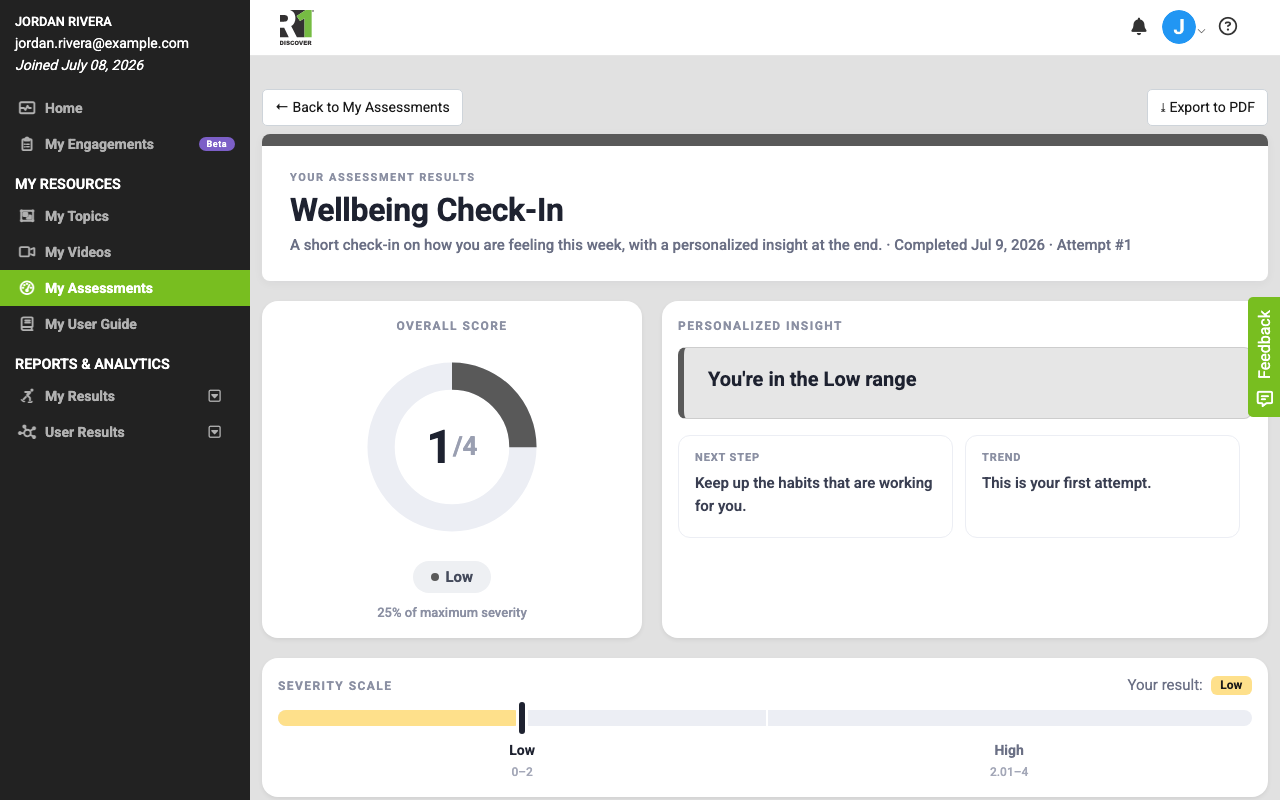
- Your Assessment Results — a title card with the assessment name, a short description, the completion date, and the attempt number.
- Overall Score — a ring showing your total as a share of the maximum (for example, 1 / 4), with a band pill such as Low and a caption showing the percentage.
- Personalized Insight — a short, plain-language interpretation of your result. For a single-score assessment it includes a Next Step and a Trend note (once you have more than one attempt, the trend compares them); for an assessment that measures several areas it highlights your Strength and your Growth Area instead.
- Severity Scale (or Recovery Capital Scale) — a bar that plots where your result falls between the low and high ends, with your band marked.
Further down the report you will find:
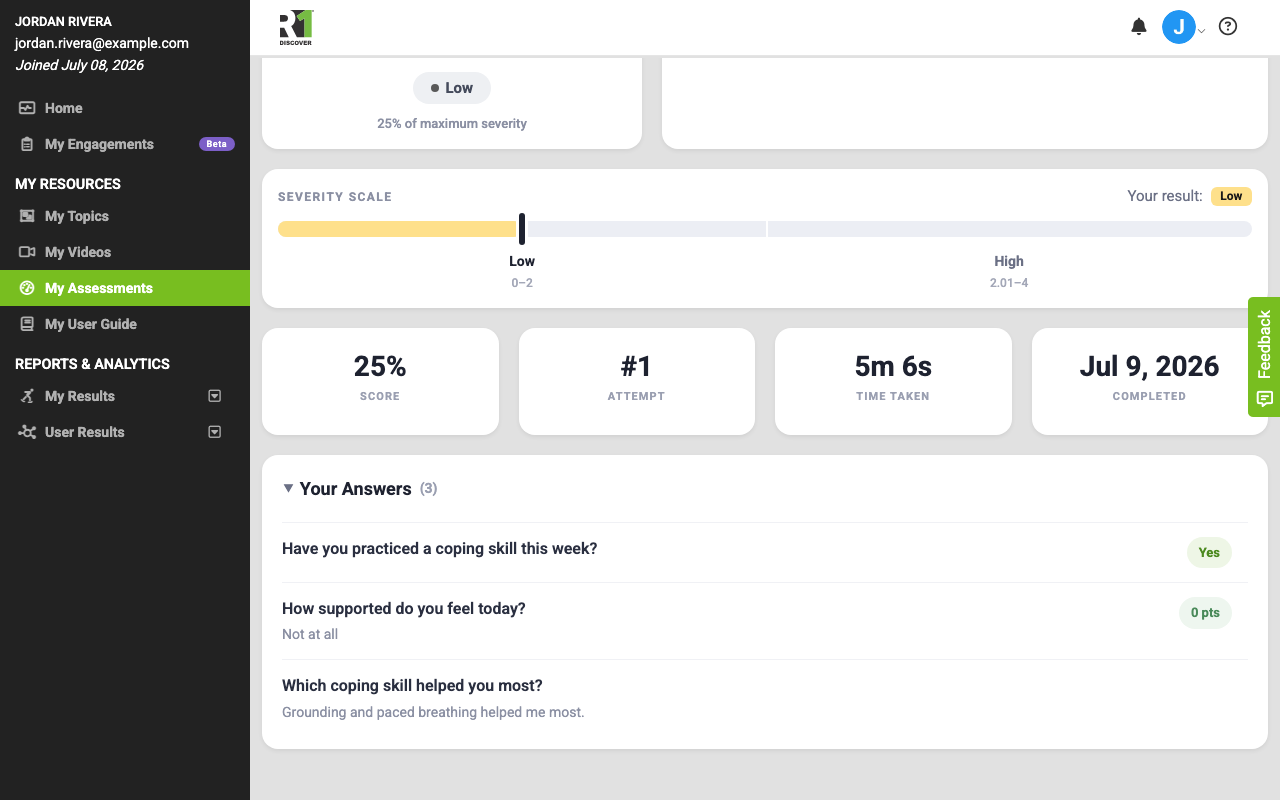
- Summary tiles for your Score, Attempt number, Time Taken, and Completed date.
- A dimension breakdown — a chart and table of your score in each area — when the assessment measures more than one dimension.
- Your Answers — select the Your Answers heading to expand a list of every question with the response you gave. This appears only when the assessment is set to show your answers back to you.
Some assessments do not display a score. For those, the report opens with a short confirmation — "Thank you — your responses have been recorded" — instead of a score ring, followed by Your Answers if the assessment shows them.
To keep a copy, select Export to PDF at the top of the report to open your browser's print-and-save dialog. Select ← Back to My Assessments to leave the report; to return to this log, go back to My Results and reopen the My Assessment Log tab.
Exporting your log
An Export CSV button appears above the log. Select it to download your assessment history, including any search filters you have applied.
Was this helpful?
Thanks for the feedback!