Explore Activities
Explore activities give you an interactive overview of an R1 topic model. They introduce the model at a high level and encourage you to reflect on your own experiences as they relate to it. See My First Activity for how to find and start an activity.
Explore activities live inside a topic, alongside the topic's other activities, knowledge checks, and resources.

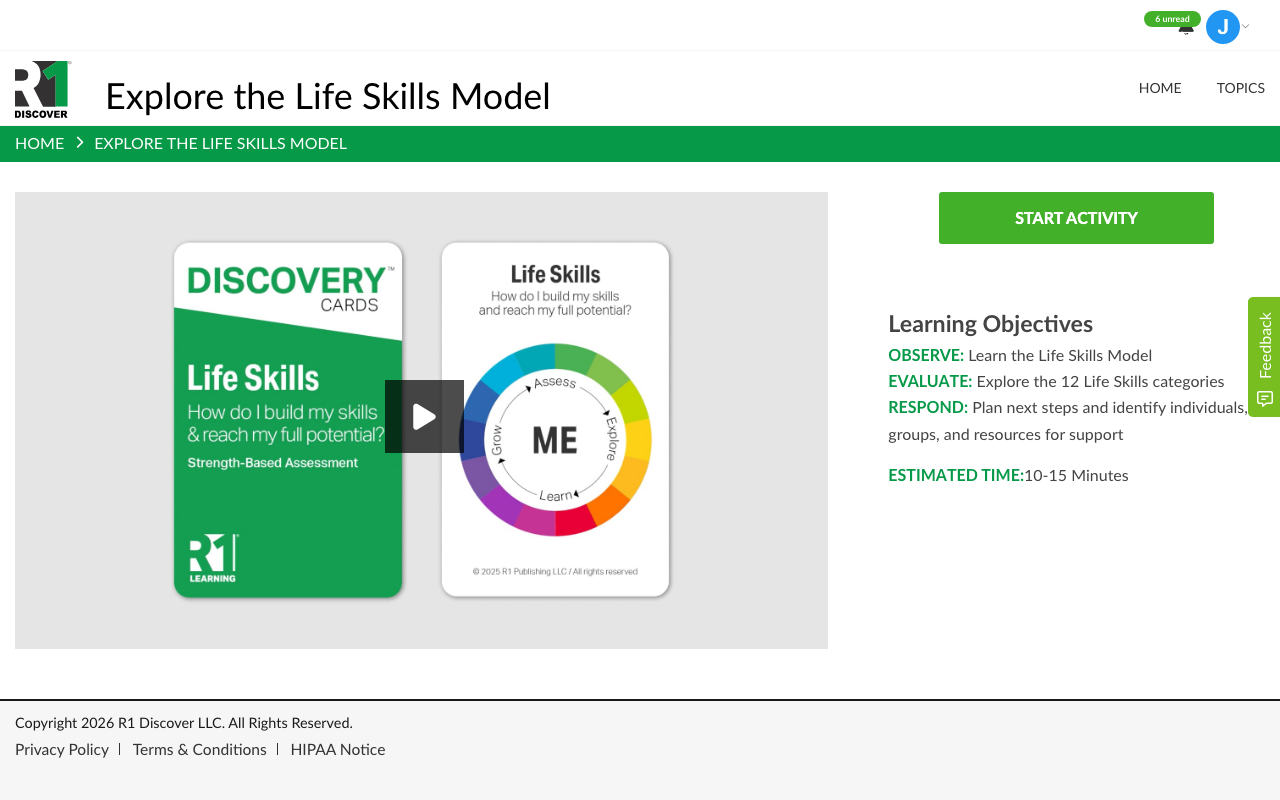
When you open an Explore activity, its intro page shows the topic cards and video, a Start Activity button, and the activity's learning objectives and estimated time.
An Explore activity has three card steps, followed by reflection questions and an interactive final report.
Working with cards
Every step uses flip cards, and the same controls appear throughout:
- Click a card to reveal it, then click it again to flip it and read the back. You must read both sides of each card before you can move on. In some activities, cards are numbered and unlock in order — cards you can't open yet appear dimmed until you finish the one before them.
- Use the Flip All Cards button at the top of the step to flip every revealed card at once.
- Use the zoom button under a card to enlarge it for easier reading, and the speaker button (when available) to have the card read aloud.
- The Go to Next Step button is always shown. It stays grayed out with a short note (for example, Flip all cards to continue) until you have finished the step, then becomes active — select it to continue.
Step 1 – Topic Overview
The first time you open a step, an on-screen instructions dialog explains what to do — select Start Activity to begin, or Take Optional Tour for a guided walkthrough.

Read the four overview cards that introduce the topic:
- Topic card – introduces the topic, with an overview on the back.
- Expert card – presents the expert behind the topic's research.
- Definition card – covers the core concept and definition of the topic.
- Model card – shows the topic model and its categories.
Step 2 – Model Definitions
Read one card for each category of the model:
- The front shows the category name and definition.
- The back gives examples of behaviors associated with that category.
You can switch between the Overview Cards and Definition Cards tabs to revisit cards from Step 1.

Step 3 – Select Your Cards
Reflect on the model categories and choose the ones that resonate with you or align with your development goals. The on-screen instructions tell you how many cards to select for this activity.
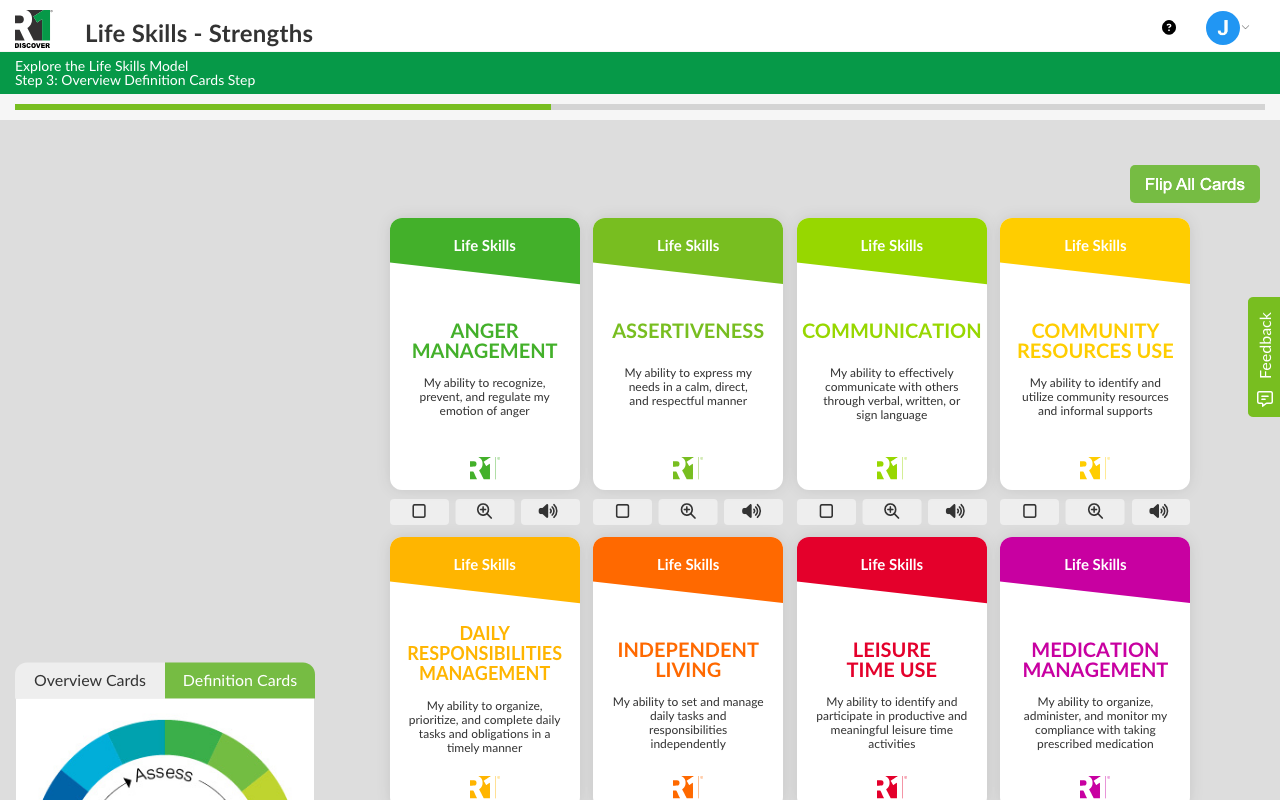
- Read both sides of a card.
- Use the Select/Deselect Card button under the card to select it.
- If you try to select more than the allowed number, a message tells you the maximum — deselect a card before choosing a different one.
When you've made your selections, select Go to Next Step.
Questions to Explore
After selecting your cards, answer a short series of self-reflection questions about what you learned. Depending on the activity, questions may be multiple-choice or written answers. Type or choose your answer for each question and select Submit to continue. Your answers become part of your final report.
Your Final Report
When you finish the questions, your interactive report opens, headed My Report. Finishing the activity also earns it a completion checkmark in the topic's activity list, just like any other activity. You can return to the report any time from your completed activities.
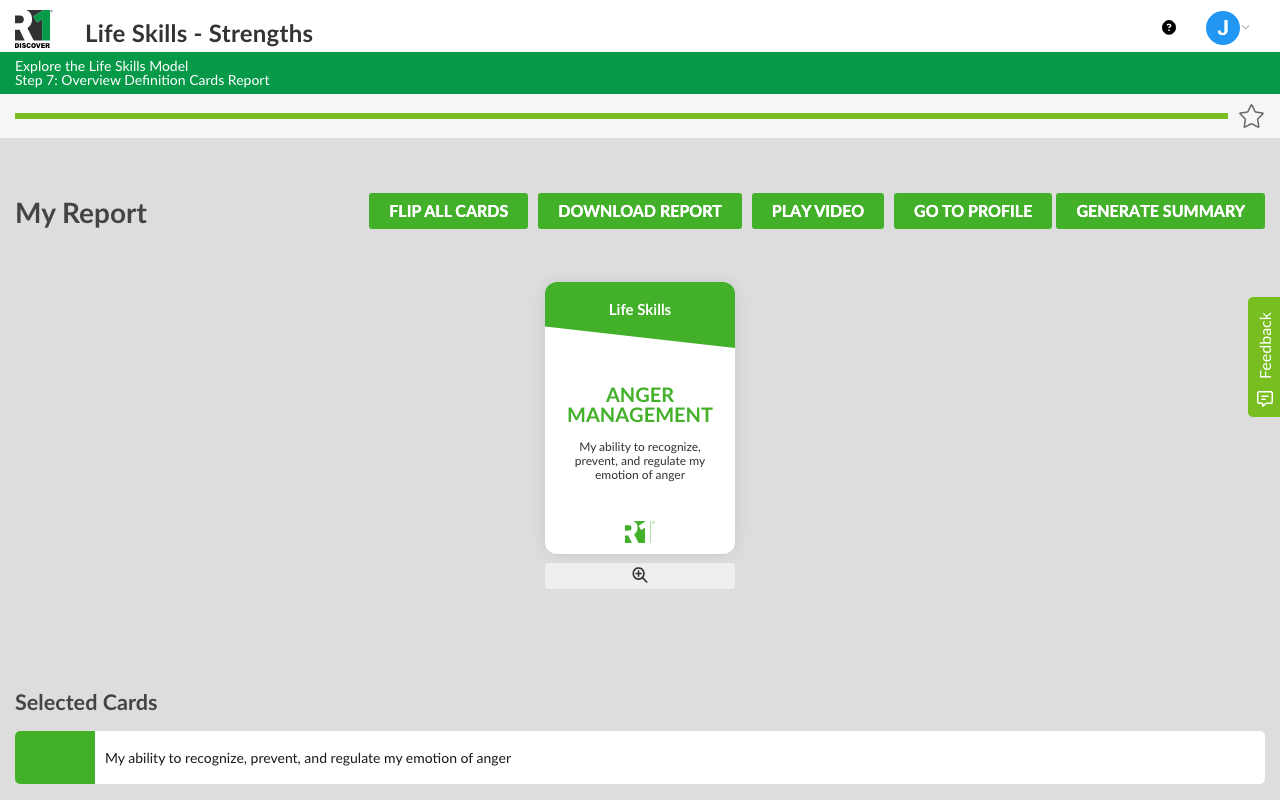
Selected cards
Your selected cards appear at the top of the report, with their definitions listed below under Selected Cards. Click a card to flip it, or use the zoom button to enlarge it.
Questions to Explore
Your reflection questions and answers are saved in the report so you can review them now or in the future.
Model overview
Re-engage with an interactive version of the topic model. Select View Model Review to open it, then click any category in the model image to review its definition.
Report actions
- Flip All Cards – flip every card in the report at once.
- Download Report – save a PDF copy of your report (when available for your organization).
- Generate Summary – produce a short written summary of your report.
- Play Video – watch the topic video from your report (when a video is available).
- Go to Profile – exit the report and return to your dashboard to start another activity or track your progress on the Home Dashboard.
Share your feedback
Depending on your organization's setup, a short feedback survey may appear while you review your report. Your input helps R1 and your organization improve the learning experience.
Was this helpful?
Thanks for the feedback!