Identify Activities
Overview
Identify (Pyramid) activities take you on a deeper journey of self-discovery within a topic. Through an interactive card-sorting exercise, you reflect on dozens of statements about the topic, choose the ones that resonate most, and rank your top choices in a pyramid. The activity ends with an interactive report that links your selections back to the topic model. See My First Activity for the two ways to find and start any activity.
Identify activities live inside a topic, alongside the topic's other activities, knowledge checks, and resources.

An Identify activity moves through these stages, each on its own screen:
- Sort the cards into YES and NO piles
- Select your top cards (usually 10) from the YES pile
- Build your pyramid by ranking those top cards
- Review the topic model
- Review your initial results
- Answer the Questions to Explore
- Review your final report
When you open an Identify activity, its intro page shows the topic cards and video, a Start Activity button, and the activity's learning objectives and estimated time.

A guided tour is available on each step the first time you take an activity, and you can replay it at any point.
Step 1 – Sort the Cards
You are shown a series of statement cards, one at a time. Decide whether each statement describes you or your beliefs about the topic. The first time you open the step, an on-screen instructions dialog explains the card sort — select Start Activity to begin, or Take Optional Tour for a guided walkthrough.

To answer YES, either:
- Swipe the card to the right, or
- Tap the green YES button
To answer NO, either:
- Swipe the card to the left, or
- Tap the red NO button
A counter tracks how many cards you have sorted out of the total (for example, 0 / 70), so you always know how far you have to go.
Reviewing and changing your selections
Select the green YES pile or the red NO pile at any time to review the cards you have placed there. To move a card to the other pile, click the card in this view.
Other Step 1 features
- Undo: Click the back arrow on the card to undo your last move (when enabled for the activity).
- Text to speech: Click the Listen (speaker) button on a card to hear it read out loud.
Once every card is sorted, select Finalize to continue, or open the YES/NO piles first to review and change your selections.
Step 2 – Select Your Top Cards
Your YES cards are now laid out together in a grid. Review them and select the ones that resonate most or describe you best — typically your top 10 (the exact number can vary by activity).

- Click a card to select it. Selected cards are highlighted.
- Click a selected card again to deselect it.
A card counter at the top and bottom of the screen (for example, 0 of 10 Cards Selected) tracks how many cards you have chosen. The speaker icon is available on each card if you want it read out loud.
When you have selected the required number of cards, select Finalize to continue.
Step 3 – Build Your Pyramid
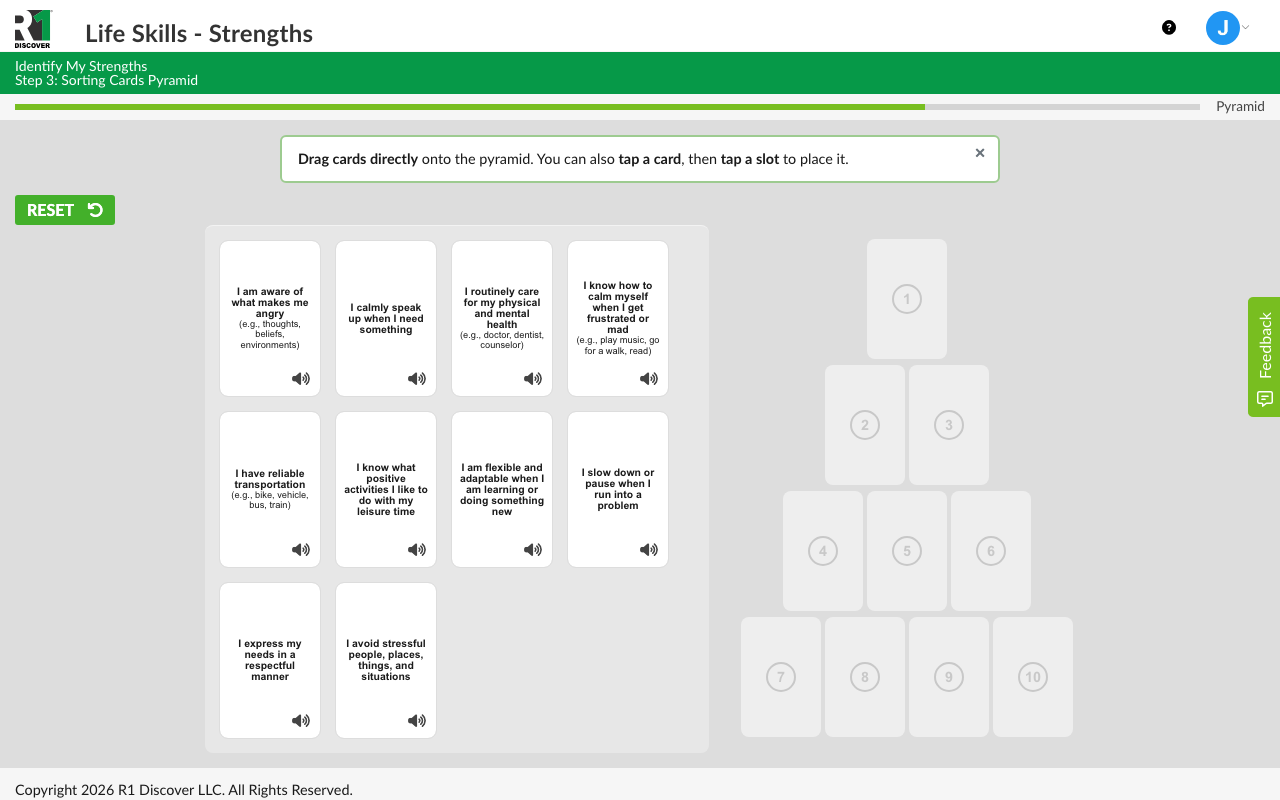
Rank your top cards in a pyramid. Your selected cards appear on one side and the empty pyramid, with numbered slots, on the other. Place the statement that resonates strongest at the top, then prioritize the rest working down the pyramid.
Placing cards
- Desktop or tablet: Drag a card directly into a pyramid slot, or tap a card and then tap the slot where you want it.
- Mobile: Your cards appear below the pyramid. Tap a card, then tap a pyramid slot to place it.
Rearranging cards
Drag a placed card to a new slot, or tap the card and then tap its new position. Tapping a filled slot swaps the two cards.
Other Step 3 features
- Reset: Select the Reset button to clear the pyramid and start over (when enabled for the activity).
- Text to speech: Click the speaker icon on a card to hear it read out loud.
When every slot is filled, select Finalize to lock in your pyramid and continue to the model review.
Step 4 – Model Review
Review the categories of the topic model. Select any colored segment of the interactive model image to read that category's definition.
Once you have reviewed the definitions, select Go to Results.
Initial Results
Your initial results reveal that each card you selected is linked to a category of the topic model, along with the percentage of your selections that fall into each category.
Pyramid and donut chart
- The donut chart shows the percentage of your selections in each model category. Toggle it between My Top Categories (which categories you selected most) and My Category Totals (how many cards fell into each category).
- Click any card in the results pyramid to flip it over and see its model category; click again to flip it back. Flip All Cards flips them all at once.
Selected cards list
The card list updates to match your selection. Sort it using the controls at the top right of the list:
- Rank Order: Cards in the order of your pyramid.
- Model Order: Cards grouped by model category, in the order of the model.
- Model Rank Order: Cards grouped by model category, with the categories holding the most of your cards first.
Model overview
Re-engage with the interactive topic model. Select View Model Review or click any category in the model image to read its definition, or read the definitions listed below the image.
When you are done reviewing, select Go to Questions.
Questions to Explore
Answer a short set of self-reflection questions about what you discovered in the activity. Depending on the activity, questions may be written answers or multiple-choice. Answer each question and select Submit Answer to move to the next one. After the last question, you continue to your final report.
Final Report
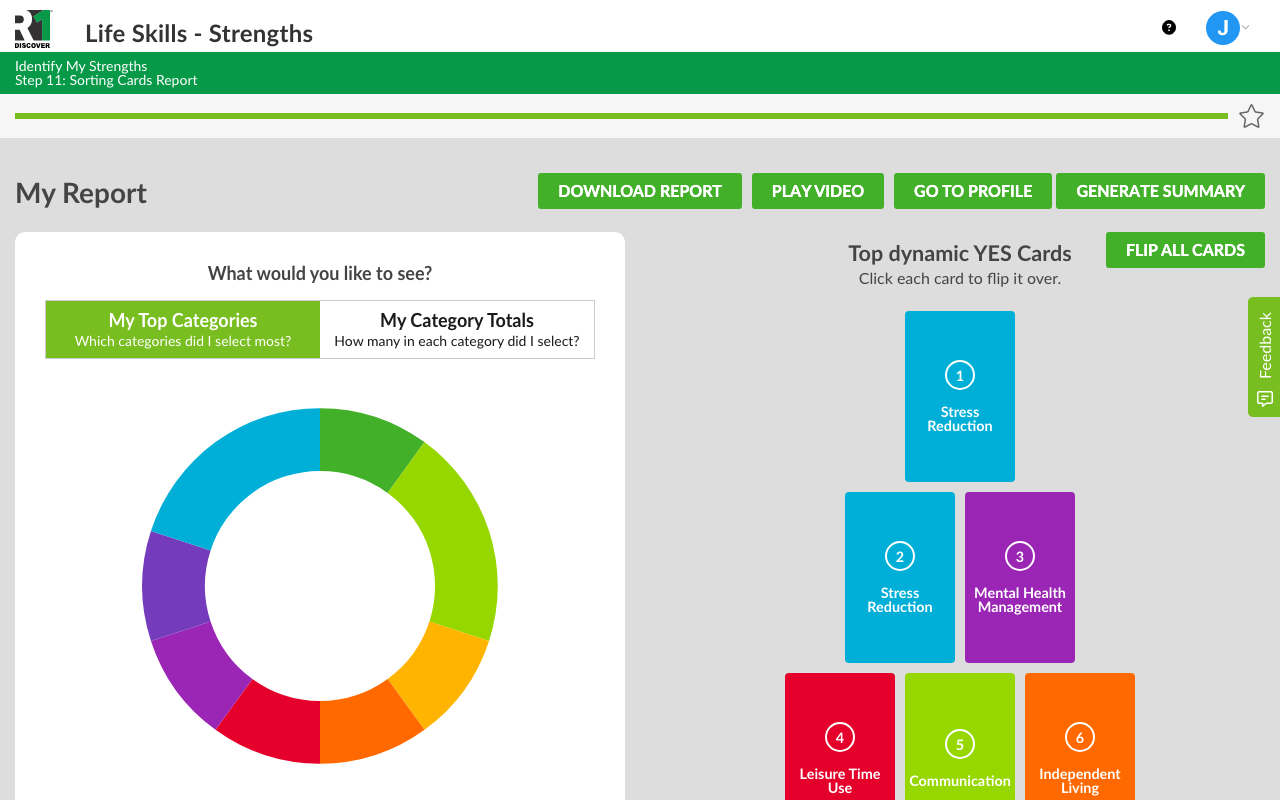
The final report is an interactive summary of the whole activity, headed My Report. It contains the same donut chart, ranked pyramid, sortable card list, and model overview as your initial results, now linked to the model categories your choices fall into. You can return to it any time from your profile.
Report actions
- Download Report: Save a PDF copy of your results.
- Generate Summary: Produce a short written summary of your results.
- Play Video: If the topic includes a video, watch it from your report.
- Go to Profile: Return to your Home Dashboard, where you can start more activities and track your progress.
Share Your Feedback
A short activity survey may appear while you review your report. Your feedback helps R1 and your organization improve the learning experience for everyone.
Was this helpful?
Thanks for the feedback!