Sign In with a Code
You don't have to use a password to get into R1 Discover. You can ask for a one-time 6-digit code instead. R1 Discover sends the code to your email or texts it to your phone, you type it in, and you're in.
This is handy if you've forgotten your password, if your password isn't working, or if you just find a short code easier than a long password.
Sign in with a code
- Go to the R1 Discover login page.
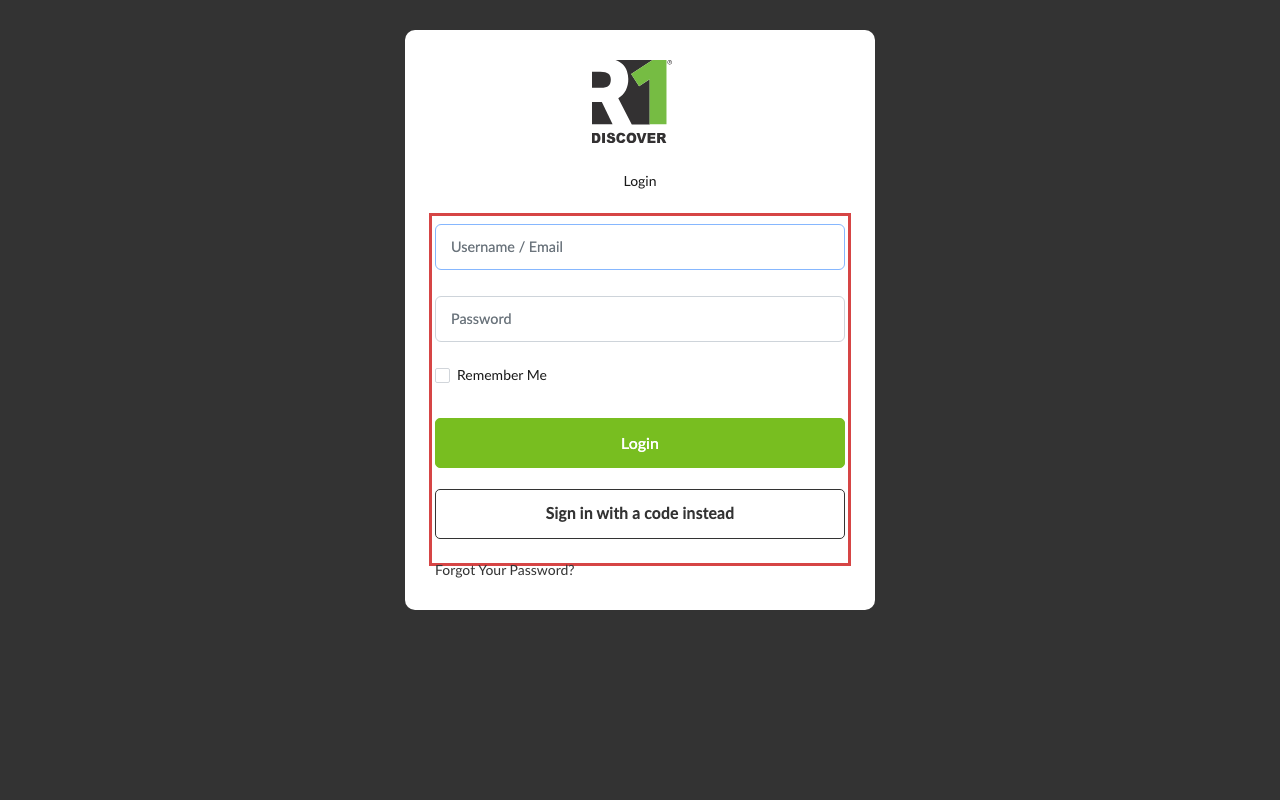
- Type your username or email address into the top box — either one works. You can leave the password box empty.
- Click Sign in with a code instead, the button underneath the green Login button.
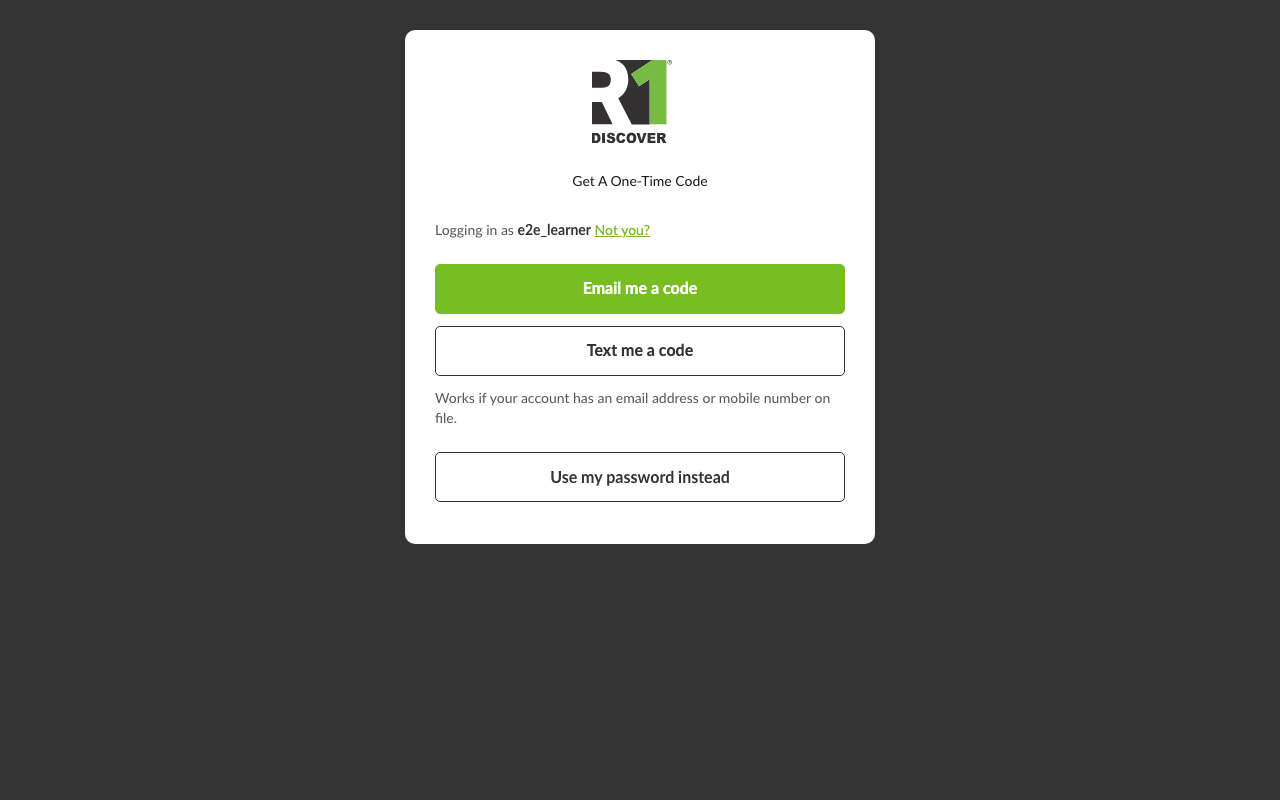
- You'll see the page "Get a one-time code". Click Email me a code or Text me a code.
- Open your email or your text messages and find the 6-digit code. In email, the code is right there in the subject line — something like "384102 is your sign-in code for R1 Discover" — so you can often read it straight off your lock screen or inbox list without opening the email.
- Type the code into the box. The Sign in button turns green once all six digits are in, and R1 Discover usually signs you in on its own at that point. If it doesn't, click Sign in.
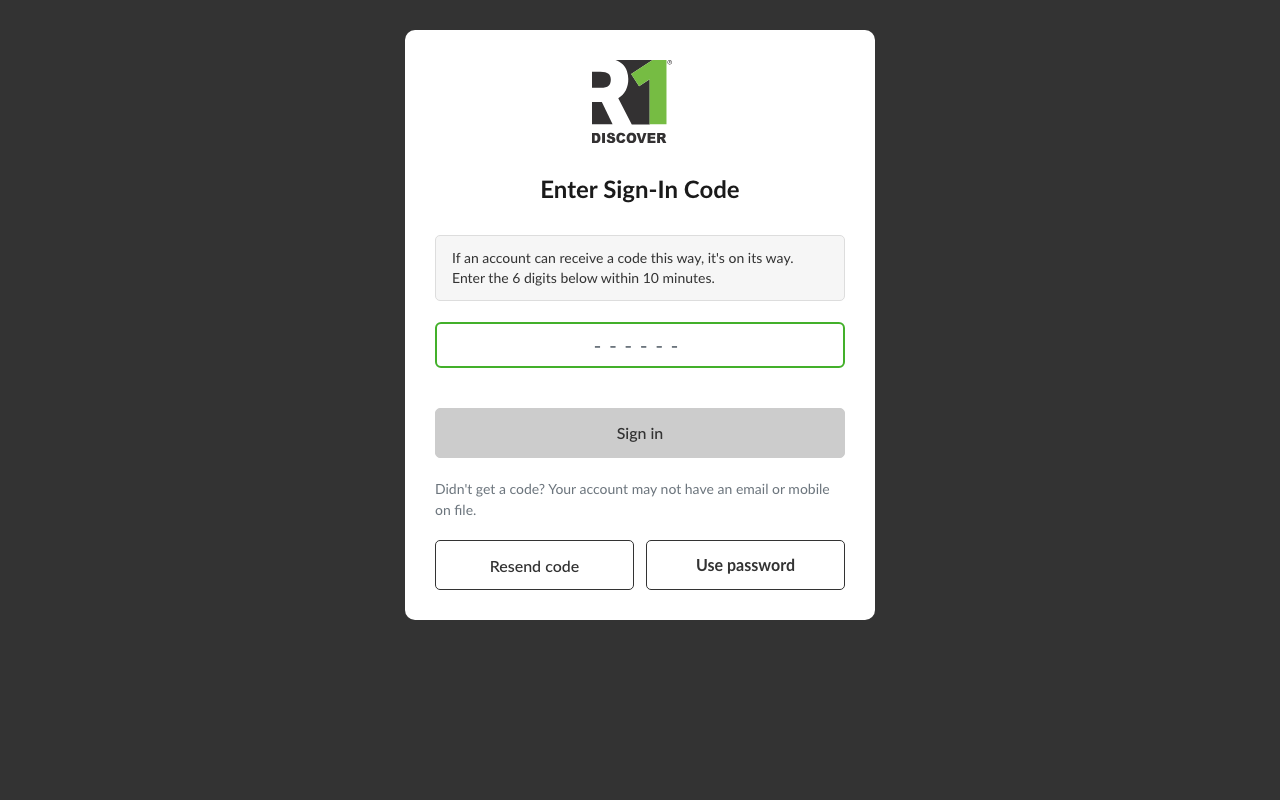
If nothing turns up, the page itself reminds you why that can happen — the account may have no email or mobile saved on it — and gives you two buttons right there: Resend code and Use password.
That's it. You land on your dashboard, exactly as if you'd typed a password.
What you'll see on the "Get a one-time code" page
The first time you sign in on a phone, tablet, or computer, R1 Discover doesn't know anything about that device yet, so it shows you both choices:
- Email me a code
- Text me a code
A code can only reach you if your account has an email address or a mobile number saved on it. Many accounts have one but not the other, and some have neither — so if you pick a way that R1 Discover can't send to, no code arrives. Nothing is broken. Just click Use my password instead, or try the other option.
Once you've signed in on that device before, the page gets simpler. It only shows the ways that actually work for your account, and it gives you a reminder of where the code is going, like j•••••@email.com or +1•••••2671. The way you used last time is listed first.
Your password is always one click away. The Use my password instead button at the bottom takes you straight back to the login form, with your username still filled in. On the code entry page that same escape hatch is the Use password button.
Good to know
- The code is in the email subject line. You can read it from your phone's lock screen or your inbox list without opening the email.
- Codes last 10 minutes. If yours runs out, click Resend code.
- Each code works once. After you sign in, that code stops working.
- Five tries. After five wrong codes in a row, that code stops working. Click Resend code for a new one and try again — there is no wait. Your password still works too.
- Your password still works. Getting a code doesn't change or erase your password.
- We never text you a password. A text from R1 Discover only ever holds a short sign-in code.
- No texts for learners in some organizations. Where an organization turns off text messaging for its learners (for example, correctional facilities), sign-in codes are never sent to learners by text. Staff accounts aren't affected.
- We don't say whether an account exists. Whatever you type, you'll see the same message. That's on purpose — it stops other people from fishing for real usernames.
- Signing in as someone else? Click Not you? to clear the name and start over.
If it doesn't work
- No email arrived. Check your spam or junk folder. Make sure you used the email address your account was created with. If your account has no email address on it, use Text me a code or ask your R1 Discover administrator to add one.
- No text arrived. A code can only be texted to a mobile number that has been added and confirmed on your account. Add and confirm your mobile number in your profile's security settings first, or use Email me a code. Message and data rates may apply.
- You don't see the code buttons. Some organizations turn code sign-in off. Sign in with your password as usual, or reset your password if you've forgotten it. If you think codes should be available to you, contact your R1 Discover administrator.
- Still stuck? Your organization's administrator can resend your login details, or you can reset your password yourself.
Was this helpful?
Thanks for the feedback!