My Personal Details
Manage your profile picture, name, contact information, and address from the My Personal Details tab.
Opening My Personal Details
- Click your profile picture in the top-right corner of any page.
- Select My Profile from the dropdown menu.
- The My Personal Details tab opens by default.

This tab is only shown if your organization allows it. If you don't see it, contact your administrator.
Profile Picture
- Hover over your profile picture on the right side of the tab and click it.
- Select a new image and adjust the crop.
- Save your new picture.
Changing Your Email
Your email field is locked by default. If a Change Email checkbox appears next to it, you are allowed to update your email:
- Check the Change Email box to unlock the field.
- Enter your new email address. It must be unique across the R1 Discover platform.
- Click Save.
- Check your inbox for a verification email and click the link to confirm the change. Until you verify, the page shows a pending-verification notice and your old email stays active. Changing the address again sends a new link.
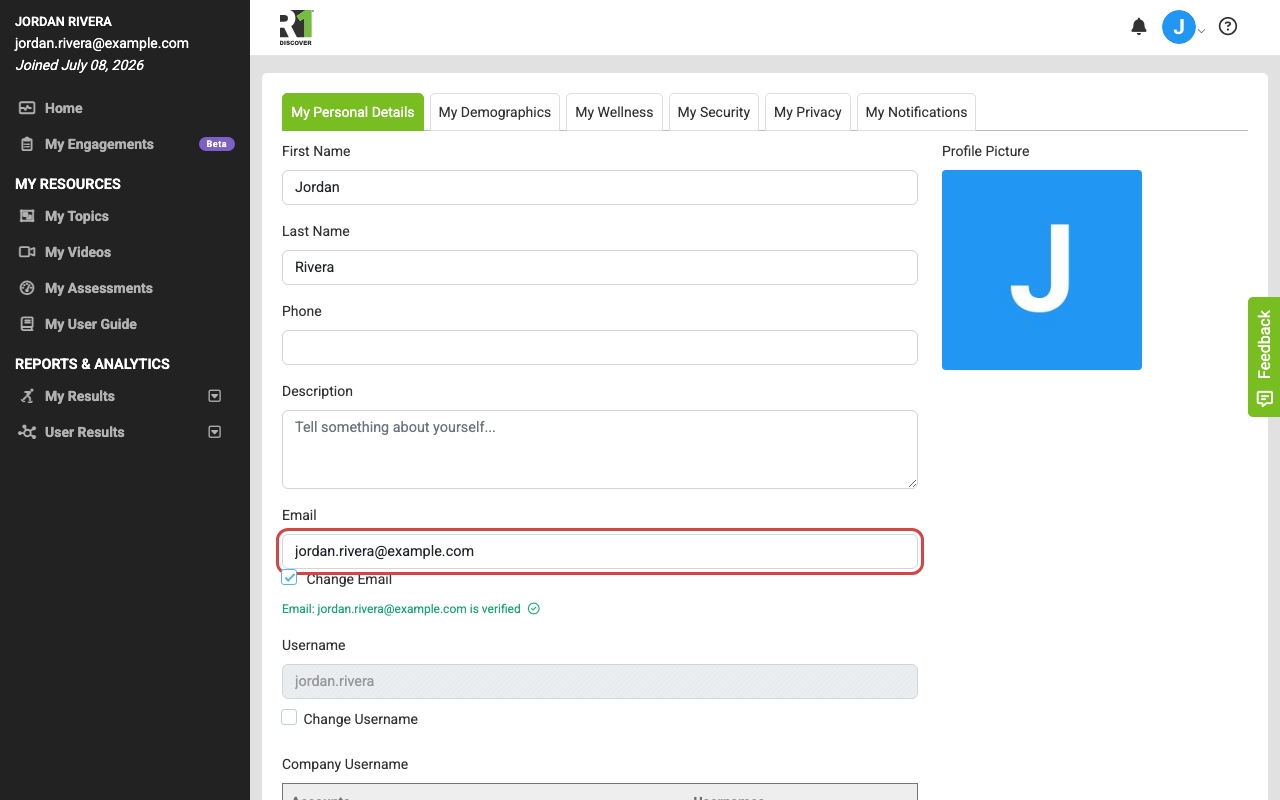
If the checkbox does not appear, your organization manages email addresses — ask your administrator to make the change.
Changing Your Username
If a Change Username checkbox appears next to the username field:
- Check the Change Username box to unlock the field.
- Enter your new username. It must be unique across the R1 Discover platform.
- Click Save.
Editing Your Personal Information
You can also update the following fields on this tab:
- First Name and Last Name (required)
- Phone (required)
- Description — a short blurb about yourself (up to 300 characters)
- Address — Address 1, Address 2, City, State/Province/Region, Zip/Postal Code, and Country
- Emergency Contact — name, phone, and relationship

Click Save at the bottom of the tab to apply your changes.
Was this helpful?
Thanks for the feedback!