My Activity Log
The My Activity Log is your personal history of every activity you have started or completed in R1 Discover. Use it to review past work, resume unfinished activities, and open completed activity reports.
Accessing My Activity Log
- In the left navigation, select My Results.
- Select the My Activity Log tab.
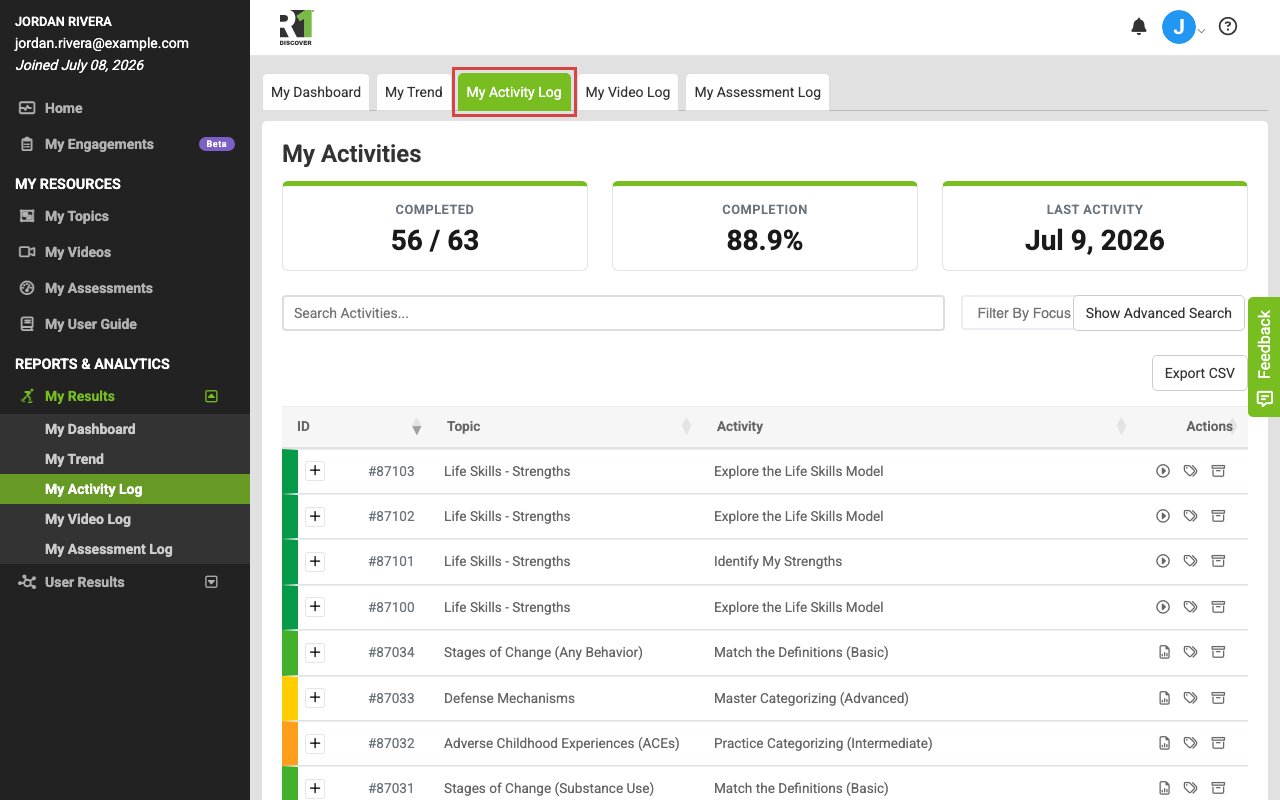
Summary cards
At the top of the log, three cards summarize the activities currently shown (they update as you search and filter):
- Completed — how many of your activities are completed, out of the total.
- Completion — your completion rate as a percentage.
- Last Activity — the date of your most recent activity.
Reading the log
Activities are listed with the most recent first. Each entry shows:
- ID — a unique identifier for the activity session.
- Topic — the topic the activity belongs to.
- Activity — the name of the activity.
- Focus — any focus labels you have applied to the activity (if focus tagging is enabled for your organization).
- Date Activity Taken — when you started the activity.
- Program — the program you were aligned to when you took the activity.
- Location — the location you were aligned to when you took the activity.
- Activity Status — the current state of the activity:
- Activity Started — you started the activity but did not finish the card portion.
- Cards Completed — you finished the cards but have not answered the questions.
- Activity Completed — you finished both the cards and the questions.
- Date Activity Completed — when the activity was fully completed.
On smaller screens, some columns are collapsed — select a row to expand it and see all details.
Searching and filtering
- Type in the Search Activities box to search across the log.
- Select Show Advanced Search to filter by individual columns, such as topic, activity, date range, program, location, or activity status. Select Hide Advanced Search to collapse the fields again.
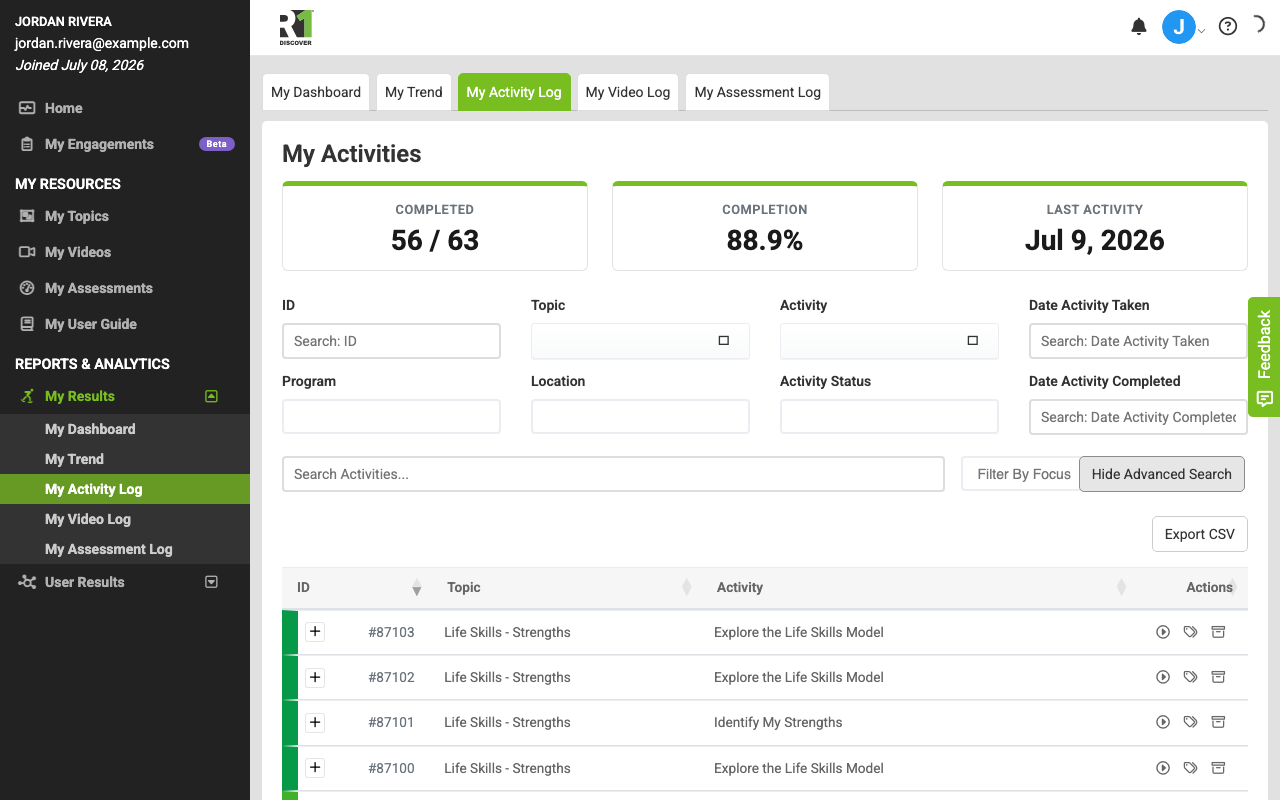
- Use the Filter By Focus dropdown to show only activities with specific focus labels (if enabled).
- Turn on the Show archived toggle to view activities you have archived.
Row actions
Icons on the right side of each entry let you act on that activity. Which icons appear depends on the activity's status:
- Resume Activity (play icon) — shown for activities that are not yet fully completed. Select it to pick up where you left off.
- View Report (document icon) — shown once the card portion is complete. Select it to open the activity report.
- Manage focus (tags icon) — apply or remove focus labels on the activity (if enabled).
- Archive / Unarchive (box icon) — move an activity out of your default view, or restore it. Archived activities stay available under the Show archived toggle.
When focus tagging is turned off for your role, or in organizations that restrict learner communications (for example, correctional facilities), the Focus column, filter, and Manage focus action don't appear. You can still choose a focus when you start an activity.
Exporting your log
If your role allows exporting, an Export CSV button appears above the log. Select it to download your activity history, including any search filters you have applied.
Was this helpful?
Thanks for the feedback!