Engagements
Engagements are the pieces of learning that have been assigned to you — an activity, a video, a worksheet, an assessment, or a link your administrator or facilitator wants you to complete, usually by a due date. Engagements is where you see everything on your plate, work through it, and track what you've finished.
This is different from browsing on your own. My Topics and My Videos let you explore the whole catalog at your own pace; Engagements shows the specific items someone assigned to you and keeps score of your progress on them. If it has a due date and someone put it there for you, it's an engagement.
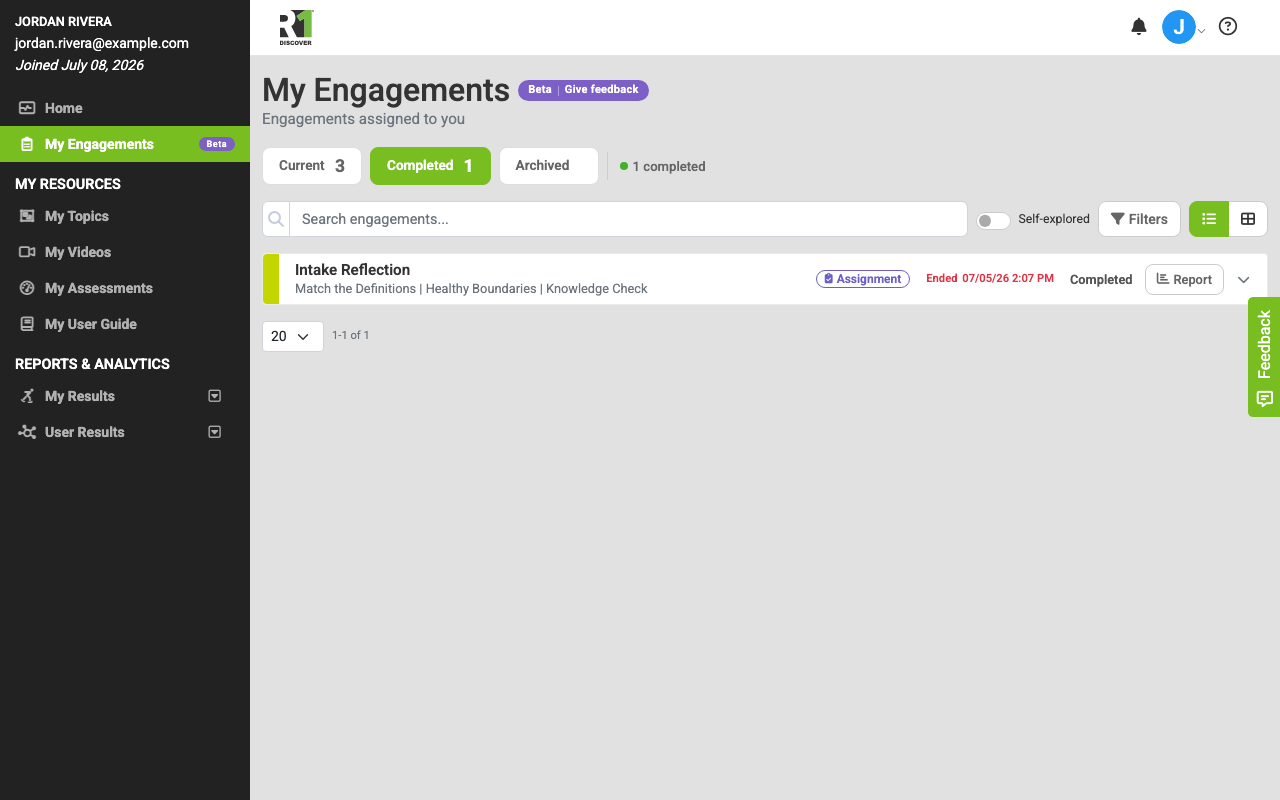
Engagements is a newer feature, so you'll see a purple Beta pill on the link and on the page, along with a Give feedback link — use it to tell us what to improve. Everything described here is fully usable today.
Finding your engagements
There are two ways in:
- The left navigation. Click My Engagements near the top, just under Home. It carries the purple Beta pill.
- The home dashboard. When you log in, the My Engagements widget on your dashboard shows your next few assigned items with quick Start / Resume buttons, plus counts of what's not started, in progress, and completed. Click View All to open the full page.

The dashboard widget also has an Explore Topics tab — that's the self-directed side, where you can start topics and activities on your own instead of working from an assignment.
If you don't see the link, your role or your organization's license doesn't include Engagements. (If your organization's license has expired, the link is hidden along with the rest of your resources.)
The Engagements page

Your engagements are organized into three tabs, each with a count:
- Current — everything that's still open and waiting on you.
- Completed — everything you've finished.
- Archived — items that have been hidden from your active list. Their data is kept.
How the Current tab is grouped
On Current, your open engagements are grouped by timing so the most urgent work is at the top:
- Overdue — the due date has passed.
- Due this week — due within the next seven days.
- Coming up — due later.
- Self-explored — activities you started on your own (shown only when you turn on the Self-explored toggle).
Each row shows the engagement title, the underlying content, a type badge (such as Assignment), the due date (in red when it's overdue), the current status, and an action button. Click a row to expand it for the full details, including who assigned it and any instructions.
Statuses
The status on each row tells you where you stand:
- Not Started — assigned to you, not yet opened.
- In Progress — you've started but haven't finished.
- Overdue — past its due date and still not complete. You can still open and finish it.
- Completed — finished; it moves to the Completed tab.
Finding a specific engagement
- Type in the Search engagements box to filter the list by title.
- Click the colored quick-filter pills above the list — overdue, in progress, not started — to jump straight to those items, then Clear filter to go back.
- Click Filters for more options (status, program, location, date range, and more). A badge shows how many filters are active.
- On wider screens, switch between list view and card view with the buttons on the right. Your choice is remembered for next time.
Starting, resuming, and finishing
Each engagement has one main button that reflects its state:
- Start — open something you haven't begun (this also appears on overdue assignments so you can still complete them).
- Resume — pick up where you left off on an in-progress item.
- Report — review an engagement you've already completed.
What happens when you click Start or Resume depends on the assigned content:
- A card activity opens directly in the activity runner.
- A video opens in a pop-up player.
- A worksheet opens in a pop-up you fill out and submit.
- An external link or uploaded company content opens in a pop-up with the link and any instructions.
When you finish, the engagement automatically moves to the Completed tab, its button changes to Report, and the row shows when it ended. Your progress also feeds into your dashboard counts and your My Results history, so completing an engagement is reflected everywhere your activity is tracked.
Staying on top of due dates
The Overdue group and the red due dates make it easy to see what needs attention first, and the home dashboard widget surfaces your most pressing items every time you log in. If a facilitator sends a reminder for something you haven't finished, you'll be notified — see My Notifications for how alerts are delivered.
Sometimes your care team takes an assignment off your list — for example when you move to another program, or it was given to you by mistake. It then disappears from your Engagements page and you stop getting reminders about it. Anything you already did on it is kept. If you open an old link to it, you are brought back to your Engagements page with the message This assignment was archived by your care team and is no longer available. If you think it was removed by mistake, ask your practitioner.
If you also facilitate or assign
The Engagements page is role-aware. If your role lets you assign work or run sessions for other people, the page is titled Engagements (rather than My Engagements) and adds tools for scheduling assignments, managing other users' engagements, running facilitated sessions, and building content and templates. Those facilitator tools are controlled by separate permissions set by your administrator; if a button or section is missing, your role doesn't include it. Everything above still describes your own assigned work under the Me view. If you assign work to others, see Engagements (Admin) for the full assigner workspace — assigning, tracking, reports, the content library, templates, and the metrics dashboard.
Was this helpful?
Thanks for the feedback!